
PlayStation 5 Won’t Connect to Internet: Complete 2024 Troubleshooting Guide
Introduction
A new game is ready to launch, but your PlayStation 5 won’t connect to internet. Downloads pause, online matches fail, and streaming apps refuse to load. Few things kill gaming hype faster than network issues on a powerful console.
The good news: most PS5 connection problems come from simple network misconfigurations, router quirks, or temporary service outages. You can fix many of them in minutes if you follow a logical order and test after each change.
This guide walks you through practical steps to diagnose and fix PS5 internet issues in 2024. You will learn how to:
- Confirm whether the problem is with PSN, your home network, or the PS5
- Fix Wi‑Fi and wired (LAN) connection issues
- Adjust DNS, IP, and NAT settings for smoother online play
- Optimize your router and modem for a stable console connection
- Decide when it is time to call your ISP or Sony support
Start with the basic checks and work your way through. By the end, you should know what is wrong and how to keep your PS5 online and stable.
Step 1 – Confirm the Problem Isn’t With Your Internet or PSN
Before changing settings on your PS5, make sure the issue does not sit outside your console. Many ‘playstation 5 won’t connect to internet’ problems come from your ISP or PlayStation Network itself. A quick check saves time and avoids needless tweaks on a perfectly fine PS5.
Test the Internet on Other Devices
First, see if other devices in your home can reach the internet:
- Use a phone, tablet, or laptop on the same Wi‑Fi network.
- Open a few websites and stream a short video.
- If those devices also fail to connect, the problem is likely your router or ISP, not the PS5.
If wired devices work but Wi‑Fi devices fail, the issue may be your Wi‑Fi radio or settings. If only the PS5 struggles, you can focus on console and network configuration.
Check PlayStation Network Server Status
Sometimes PSN goes down or faces partial outages. When that happens, your PS5 might connect to the internet but fail to access online services.
- On a phone or PC, go to the official PlayStation Network Service Status page for your region.
- Check for any alerts about sign‑in, account, or gaming services.
If PSN is down, you will need to wait until Sony resolves the issue. Changing your own settings will not help.
Verify Your Game or App Requires Online Access
Some games need online servers, while others are offline only:
- If one specific game fails to connect but others work, the game’s servers may be down.
- Check the game’s official social channels or website for outage updates.
Once you know the issue is not an external outage or game server issue, you can move on to console‑level troubleshooting.
Step 2 – Run a Network Test on Your PS5
You now know the problem likely sits with your home network or console. The next move is to run a network test on the PS5. This built‑in tool shows whether the console gets an IP address, reaches the internet, and connects to PSN.
How to Access Network Settings on PS5
Follow these steps:
- From the PS5 home screen, go to Settings (the gear icon).
- Select Network.
- Choose Connection Status.
- Select Test Internet Connection.
The PS5 will run several checks. It will try to obtain an IP, reach the internet, and access PlayStation Network.
Interpreting the Internet Connection Test Results
Once the test finishes, you will see results for:
- Connected to the internet: Yes/No
- PlayStation Network sign‑in: Successful/Failed
- NAT type
- Download and upload speeds
If it fails at ‘Obtain IP address’, the issue is between the PS5 and your router. If it gets an IP but fails at ‘Internet’ or ‘PSN sign‑in’, the problem is beyond your local link, or with DNS or firewall settings.
Local Network vs. Online Service Issues
Use this simple rule:
- Fails on ‘Obtain IP’ or ‘Internet’: local network or router issue
- Passes those but fails PSN sign‑in: PSN, account, or strict NAT/firewall issue
This information tells you where to look next. If the issue points to Wi‑Fi quality or LAN stability, focus on the connection type your PS5 uses in the following step.
Step 3 – Fix Common PS5 Wi‑Fi Connection Problems
If your PS5 uses Wi‑Fi and the connection test fails or drops often, the cause may be a saved network profile, a password mismatch, or weak signal. Wireless convenience is great, but consoles are sensitive to unstable Wi‑Fi.
Forget and Re‑Add Your Wi‑Fi Network
A corrupted saved network profile or changed router settings can break Wi‑Fi access. To refresh it:
- Go to Settings > Network > Settings.
- Select Set Up Internet Connection.
- Highlight your Wi‑Fi network, press Options, and choose Forget.
- Select your network again and reconnect with the correct password.
This simple step often fixes ‘playstation 5 won’t connect to internet’ errors caused by old or incorrect data.
Double‑Check Wi‑Fi Password and Security Type
If you recently changed your Wi‑Fi password or security mode:
- Log into your router’s admin page using a browser.
- Check the SSID (network name), password, and security type (for example, WPA2‑PSK or WPA3).
- Make sure you enter the exact password on PS5, paying attention to case sensitivity.
If your router uses WPA3 only and some devices struggle, try enabling a mixed WPA2/WPA3 mode to improve compatibility.
Improve Signal Strength and Reduce Interference
Weak or noisy Wi‑Fi causes slow speeds and random disconnections:
- Move the PS5 and router closer together if possible.
- Avoid placing the router inside cabinets or behind metal objects.
- Keep it away from microwaves, cordless phones, and thick reinforced walls.
- If your router supports both 2.4 GHz and 5 GHz:
- Use 5 GHz for faster speeds and lower interference at short range.
- Use 2.4 GHz for better range if the PS5 is far away.
If Wi‑Fi still behaves poorly, consider testing a wired connection or powerline adapter in the next steps to see whether a cable fixes the problem.
Step 4 – Troubleshoot Wired (LAN) Connection Issues
A wired Ethernet connection should be more stable than Wi‑Fi, but it can fail too. If your PS5 shows ‘LAN cable not connected’ or fails to get an IP via cable, focus on the physical link and port settings.
Inspect and Test Your Ethernet Cable
Start with the simplest check:
- Make sure the cable clicks firmly into the PS5 and router.
- Inspect the cable for visible damage or sharp bends.
- Test the same cable with a laptop or another device.
If the other device also fails to connect, replace the cable with a known good Cat5e or Cat6 cable and test again.
Check Router LAN Ports and Switches
The problem can also lie with the router or a network switch:
- Try a different LAN port on the router.
- If you use a switch or powerline adapter, bypass it and connect the PS5 directly to the router.
- Check that the router’s LAN LEDs light up when the cable is connected.
If other devices work on that port but the PS5 does not, the issue might be console‑side network settings, which you will adjust in the next sections.
Configure PS5 for Wired Connection Correctly
Confirm your PS5 is set to use the wired link:
- Go to Settings > Network > Settings.
- Choose Set Up Internet Connection.
- Select your Wired LAN option and choose Set Up.
- For most homes, Easy setup (automatic IP and DNS) works fine.
If the automatic setup fails, you may later switch to manual IP and DNS, which we cover in Step 5. Those advanced settings can solve deeper connection issues when both Wi‑Fi and LAN show similar symptoms.
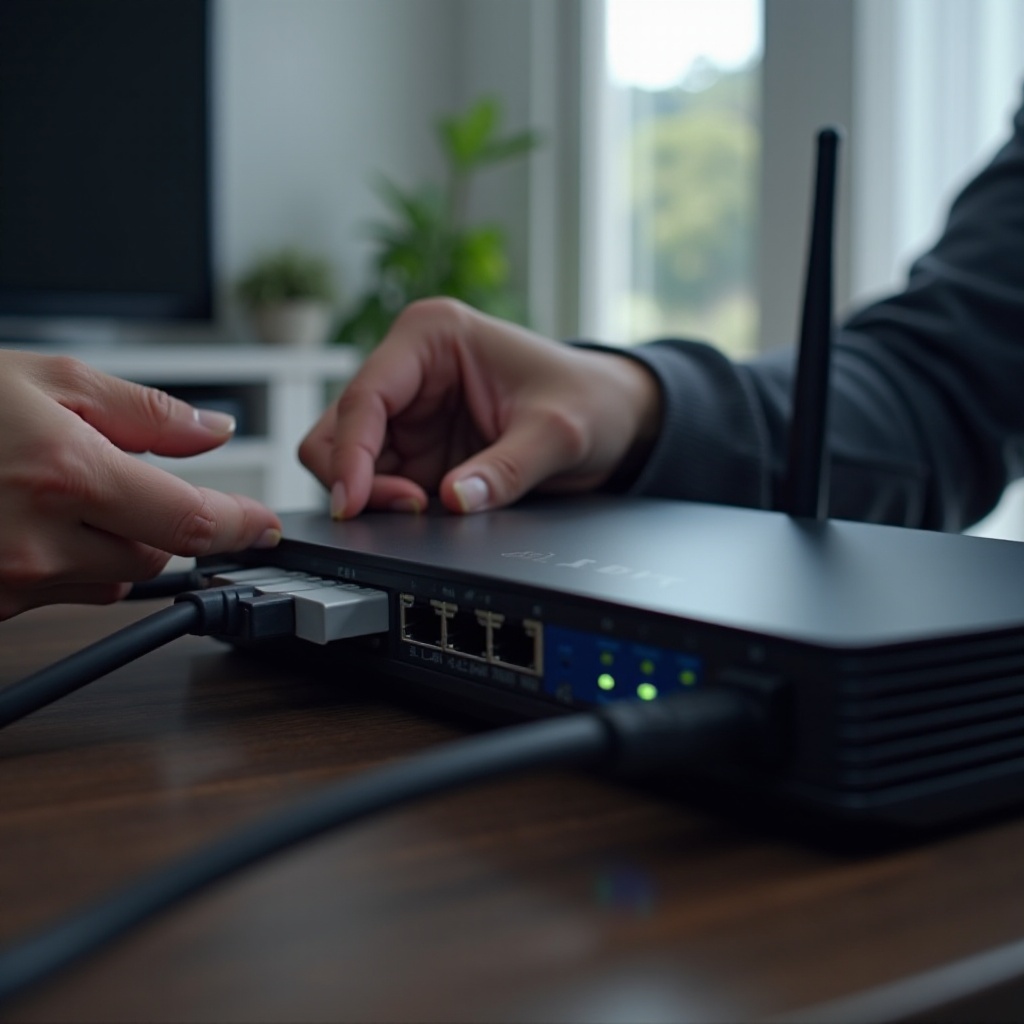
Step 5 – Fix DNS, IP, and Advanced Network Settings
If your PS5 gets an IP address but still cannot reach the internet or PSN, the issue can be DNS, IP conflicts, or strict NAT. These settings control how your console finds online servers and how easily it communicates with them.
Switch From Automatic to Manual DNS
DNS translates website and service names into IP addresses. If your ISP’s DNS is slow or unstable, your PS5 may struggle.
To change DNS:
- Go to Settings > Network > Settings > Set Up Internet Connection.
- Press Options on your active network and choose Advanced Settings.
- Set DNS Settings to Manual.
- Enter a public DNS such as:
- Primary: 8.8.8.8, Secondary: 8.8.4.4 (Google)
- Or Primary: 1.1.1.1, Secondary: 1.0.0.1 (Cloudflare)
Run the connection test again and see if the error clears.
Assign a Static IP Address to Your PS5
DHCP automatically hands out IP addresses, but conflicts or frequent changes may cause issues. A static IP makes port forwarding and troubleshooting easier.
You can:
- Reserve an IP for your PS5 in the router’s DHCP reservation section (recommended).
- Or set a manual IP directly on the PS5 in Advanced Settings, using:
- An IP address outside the automatic pool but within your subnet.
- The router IP as the default gateway.
- The DNS servers you chose earlier.
This helps prevent conflicts where two devices share the same IP on your network.
NAT Type, Port Forwarding, and UPnP Basics
NAT controls how your router handles incoming connections:
- NAT Type 1 or 2 is generally good.
- NAT Type 3 is strict and can block PSN or voice chat.
To ease this:
- Log into your router and ensure UPnP (Universal Plug and Play) is enabled. This lets the PS5 open ports automatically.
- If UPnP is not available or does not work, set manual port forwarding rules for PSN and your most used games, following Sony and game publisher port lists.
After changes, reboot the router and PS5, then test the connection again. If you still see problems, the issue may lie with router performance or firmware, which you will address next.
Step 6 – Optimize Your Router and Modem for PS5
You have tweaked console settings; now make sure your network equipment helps, not hurts. A buggy router firmware or poor Wi‑Fi configuration can trigger persistent ‘playstation 5 won’t connect to internet’ errors.
Power‑Cycle and Update Your Router Firmware
A simple reboot clears many glitches:
- Turn off your router and modem.
- Wait 30–60 seconds.
- Turn them back on and wait for full restart.
Next, log into the router admin panel:
- Check for firmware updates and install the latest stable version.
- Many 2024 updates improve Wi‑Fi stability and device compatibility.
Always back up your router settings before a firmware upgrade so you can restore a working setup if something goes wrong.
2.4 GHz vs. 5 GHz Bands for Console Gaming
Modern routers often use both 2.4 GHz and 5 GHz bands:
- 5 GHz: faster and less crowded but shorter range.
- 2.4 GHz: longer range but more interference.
For a PS5 in the same room as the router, 5 GHz usually gives the best result. If your router uses a single combined SSID (‘Smart Connect’), try splitting bands into separate names (for example, ‘Home_2G’ and ‘Home_5G’) and connect the PS5 to the one that works best.
Check for Parental Controls, MAC Filters, and Firewalls
Security features can silently block your console:
- Look for parental controls that restrict gaming devices or specific MAC addresses.
- Disable MAC address filtering or add the PS5 MAC as an allowed device.
- Make sure the router firewall is not set to the strictest mode, which can block PSN.
Once you have tuned your router and modem, you have handled most network‑side causes. If the PS5 still will not connect, it is time to look at system software and console‑side data.
Step 7 – Update and Reset PS5 System Software Safely
If your network looks fine and other devices work, the PS5 system software might need attention. A bugged update or corrupted system data can interfere with network functions.
Update PS5 System Software Without a Stable Connection
You can update system software even if your PS5 struggles to go online:
- On another device, download the latest PS5 update file from the official PlayStation website to a USB drive, following Sony’s instructions.
- Start your PS5 in Safe Mode by holding the power button until the second beep.
- Choose Update System Software, then Update from USB Drive.
After a successful update, test your internet connection again from the Network menu.
Rebuild Database in Safe Mode
A corrupted database can cause odd behavior, including network glitches:
- Enter Safe Mode again.
- Choose Rebuild Database.
This process reorganizes system data without deleting your games. It can resolve hidden issues that regular restarts do not touch.
When to Consider a Factory Reset
If all else fails and you suspect deep system corruption:
- Back up your saves to cloud storage (if you have PS Plus) or to a USB drive.
- Go to Settings > System > System Software > Reset Options.
- Select Reset Your Console and follow the prompts.
Use this as a last resort. After the reset, set up your network again from scratch and see if the problem remains. If it does, you may be dealing with a hardware or ISP issue beyond the console itself.
Step 8 – Identify ISP or Network Hardware Issues
At this stage, you have tested Wi‑Fi, wired, DNS, router settings, and system software. If your PlayStation 5 still won’t connect to internet while other devices also act up, the root cause may be your ISP or failing hardware.
Spotting ISP Outages and Throttling
Look for these signs:
- Internet cuts out on multiple devices at random times.
- Speed tests show huge drops compared to your plan.
- The connection fails mostly during peak hours.
Run a few speed tests from a PC or phone connected directly to the router. If results are far below expectations or show large packet loss, contact your ISP and ask about outages, line noise, or congestion on their side.
Recognizing Router or Modem Hardware Failure
Old or cheap routers often fail under the load of many devices and high‑bandwidth gaming:
- Frequent reboots are required to keep things working.
- The router gets very hot to the touch.
- Wi‑Fi networks vanish or reappear randomly.
If possible, test with a different router or modem. If that fixes the problem, it may be time for an upgrade designed to handle modern gaming and streaming.
What to Tell Your ISP or Tech Support
When you contact support, share:
- That the PS5 and other devices lose internet or get unstable speeds.
- The results of your speed tests and any error messages.
- Whether issues appear over both Wi‑Fi and Ethernet.
Clear details help them pinpoint line problems, faulty equipment, or configuration issues on their end. If they confirm the line is healthy and other devices work fine, the last piece to check is the PS5 hardware itself.
Step 9 – Prevent Future ‘PS5 Won’t Connect to Internet’ Problems
Once your PS5 is back online, a few best practices will make future issues less likely. Prevention saves frustration and keeps game nights smooth.
Best Router Settings for Console Gaming in 2024
For a better gaming experience:
- Enable UPnP so the PS5 can manage ports.
- Disable overly aggressive firewall modes.
- Use separate SSIDs for 2.4 GHz and 5 GHz and pick the best one for the PS5.
- Keep firmware updated and back up settings after a stable configuration.
These simple choices give your console a clear path to PSN and online game servers.
Using QoS, Mesh Wi‑Fi, or Powerline Adapters
If your home has many users or a tricky layout:
- Use QoS (Quality of Service) on the router to prioritize your PS5 traffic over background downloads and streaming.
- Consider mesh Wi‑Fi if your home is large or has many walls that block signal.
- Try powerline adapters if running Ethernet cables is not possible but you want wired‑like stability.
Each solution helps keep your PS5 connection strong even when the network is busy.
Security Practices That Won’t Break PS5 Connectivity
You can stay secure without blocking your console:
- Use strong Wi‑Fi passwords and WPA2/WPA3 security.
- Avoid random third‑party ‘security boosters’ that interfere with traffic.
- Regularly review which devices are connected and remove unknown ones.
Balanced security keeps your network safe and your PS5 reliably online.
Conclusion
When a PlayStation 5 won’t connect to internet, the cause is rarely a mystery once you test each part of the chain. By checking other devices, running the PS5 network test, refining Wi‑Fi or LAN settings, and tuning DNS and NAT, you can isolate and fix most issues yourself.
Router optimization, firmware updates, and simple physical checks catch many hidden problems. If those steps fail, PS5 system tools such as Safe Mode, database rebuilds, and updates often bring the console back into shape. Only after all of that do you usually need to involve your ISP or Sony support.
Work through these steps calmly and in order, testing after each change. With a stable and optimized network, your PS5 will be ready for smooth online play, fast downloads, and lag‑free streaming.
Frequently Asked Questions
Why does my PS5 say ‘Connected to the network’ but there is no internet?
This usually means the PS5 gets an IP from your router but cannot reach the wider internet. Common causes are DNS problems, ISP outages, or strict firewall settings. Change DNS to a public provider, reboot your modem and router, and test other devices to see if the entire network is affected.
Is Wi-Fi or Ethernet better for PS5 online gaming in 2024?
Ethernet is still better for PS5 online gaming because it offers lower latency, fewer drops, and more consistent speeds. If you cannot run an Ethernet cable, use a strong Wi-Fi 5 or Wi-Fi 6 router, connect on the 5 GHz band, place the router near the console, or use powerline adapters for added stability.
When should I contact Sony support about PS5 internet issues?
Contact Sony support if your PS5 still cannot connect after you verify your network with other devices, try both Wi-Fi and Ethernet, adjust DNS and NAT, update system software, and use Safe Mode tools such as database rebuild. If everything else on your network works and the PS5 alone has issues, you may have a hardware or deep system fault.