
Onn TV Remote Not Working? Complete Troubleshooting Guide
Introduction
When your Onn TV remote stops working, the TV becomes almost useless. You press Power, Volume, or Home, and nothing happens. You are left wondering whether the remote is dead, the TV is broken, or there is a simple fix you have missed.
The good news is that most ‘Onn TV remote not working’ issues come from basic problems you can solve in minutes. A loose battery, blocked sensor, or lost pairing is far more common than a serious hardware failure. With a calm, step-by-step approach, you can usually get your remote and TV talking again without buying new gear.
This guide walks through practical fixes for different Onn remotes, including standard IR remotes and Onn Roku TV remotes. You will learn how to identify your remote type, run quick checks, apply targeted solutions, and decide when it is time to replace the remote or call support. Let us start by making sure you know exactly which kind of Onn remote you own.
Understand Your Onn TV and Remote Type
Before you can fix a remote that does not respond, you need to know what you are trying to fix. Onn sells budget TVs and streaming devices under one brand name, but their remotes use different technologies and follow different troubleshooting steps.
Some models use a simple infrared (IR) remote that needs direct line of sight. Others, especially Onn Roku TVs, use remotes that rely on Bluetooth or a mix of IR and wireless communication. If you try the wrong fix for the wrong type, you can waste time and still be stuck with an Onn TV remote not working.
Onn standard TV remote vs. Onn Roku TV remote
Most Onn owners in the US will have one of these two remote categories:
- Standard Onn TV remote
- Comes with basic Onn HDTVs and some non-Roku smart TVs.
- Has straightforward buttons: Power, Input, Volume, Channel, numbers, and basic controls.
-
Almost always uses IR only and must be pointed at the TV.
-
Onn Roku TV remote
- Bundled with Onn Roku TVs and some Onn Roku streaming devices.
- Features a Home button, Back, directional arrows, OK, and streaming service keys.
- Many models support voice commands and use Bluetooth or a mix of Bluetooth and IR.
Knowing which group your remote belongs to makes it easier to pick the right reset and pairing methods.
IR, RF, and Bluetooth: why the technology matters
Onn remotes can use three main signal types:
- IR (Infrared)
- Sends light pulses from the front of the remote to a sensor on the TV.
- Needs a clear path; blocked sensors or bright light can disrupt it.
-
Common on standard Onn TV remotes.
-
RF (Radio Frequency)
- Sends radio signals that do not require line of sight.
-
More common in higher-end or combo devices than in basic Onn remotes.
-
Bluetooth
- Used in many Roku-style remotes, especially voice models.
- Requires pairing with the TV and may lose connection after resets or updates.
IR problems usually involve blocked sensors, bad angles, or dead batteries. Bluetooth or RF problems often point to pairing and software issues.
How to quickly identify your remote model
To choose the right repair steps, identify your remote with these simple checks:
- Look at the button layout.
- A prominent Home button, Roku logo, or branded app keys like Netflix or Disney+ usually means an Onn Roku remote.
-
Number keys, channel up/down, and a more traditional layout often indicate a standard IR Onn TV remote.
-
Check the label or markings.
- Open the battery cover and look for any markings such as ‘Roku’, ‘Voice Remote’, or a specific Roku model code.
-
Some remotes list the brand or model on the back case.
-
Test the behavior.
- If it only works when you point it directly at the TV, it is most likely an IR remote.
- If it used to work from different angles or without line of sight, it may use Bluetooth or RF.
Once you know what you are holding, you can move into core checks that apply to almost every ‘Onn TV remote not working’ situation.
Start with the Essential Quick Checks
Most remote issues come from simple causes: no power to the TV, dead batteries, or a blocked signal path. Before you do anything complex, knock out these easy steps. They often restore control faster than any advanced trick.
First, you want to confirm that the TV itself is alive and able to respond. Then, you check that the remote can send a signal at all. If both sides look good, you dig deeper into remote-specific and software-specific fixes.
Confirm the TV has power and responds to buttons on the set
Do not assume the remote is at fault before you prove the TV is on and working.
- Check the TV indicator light.
- Look for a standby or power light on the front or bottom edge of the TV frame.
-
If there is no light at all, the TV may not be getting power.
-
Inspect the power source.
- Make sure the power cord is firmly plugged into the TV and wall outlet or power strip.
-
Try another outlet to rule out a bad socket or tripped strip.
-
Use the physical buttons on the TV.
- Find the power and volume buttons on the back, underside, or side of the TV.
- Press Power to turn the TV on or off.
- Adjust Volume or change Input to confirm the TV responds.
If the TV does not respond to its own buttons, you are probably dealing with a TV problem, not just an Onn remote problem. If the TV responds, but the remote does not, keep going.
Check battery orientation, charge level, and contact corrosion
Next, make sure the remote has enough power and that the batteries sit correctly.
- Remove the batteries.
- Slide off the battery cover.
-
Take out both batteries and set them aside.
-
Check orientation.
- Look inside the battery compartment for ‘+’ and ‘-‘ symbols.
-
Insert the batteries so that the positive and negative ends match those markings.
-
Use fresh batteries.
- Replace old batteries with a new pair of quality alkaline batteries.
-
Do not mix old and new batteries or different brands.
-
Inspect battery contacts.
- Look for white, green, or rusty buildup on the metal terminals.
- If you see corrosion, gently wipe it with a dry cloth or cotton swab.
Put the cover back on and test the remote again. If you still see your Onn TV remote not working, focus on the path between remote and TV.
Remove obstructions between the remote and TV sensor
IR remotes need a clear path to the TV sensor. Even a small block can stop the beam.
- Make sure there is no soundbar, game console, or decoration sitting directly in front of the TV’s lower bezel.
- If the TV sits inside a cabinet, open the doors before using the remote.
- Avoid placing the TV behind tinted or dark glass that can weaken the IR signal.
Stand about 6 to 10 feet away and point the remote toward the front lower area of the TV. Test Power, Volume, and Mute. If you still get no reaction, it is time to use remote-specific fixes based on your remote type.
Fixes for Standard Onn IR TV Remotes
If you have a basic Onn remote without Roku branding, your remote almost certainly relies on IR. When an IR Onn TV remote is not working despite fresh batteries and a clear line of sight, the signal may be getting blocked, the remote may be frozen, or the TV sensor may be dirty.
You will start by correcting simple signal issues. If that does not help, you will reset the remote to clear any internal glitch. Finally, you will look at external interference that can confuse the IR signal.
Clean the IR emitter on the remote and the TV’s IR sensor
Dust and fingerprints can reduce how well the IR signal reaches the TV.
- Clean the front of the remote.
- Use a soft, dry microfiber cloth.
-
Wipe the glossy plastic window at the top of the remote where the IR emitter sits.
-
Clean the TV sensor area.
- Gently wipe the area around the power light or any visible sensor window on the TV.
- If needed, lightly dampen the cloth with a small amount of screen-safe cleaner, but do not spray cleaner directly on the TV.
After cleaning, point the remote at the sensor and press several buttons. If there is still no response, perform a reset.
Reset the remote by power-draining the buttons
Remote electronics can freeze, just like a small computer. Draining power helps clear that state.
- Remove the batteries from the remote.
- Press and hold the Power button for at least 10 to 15 seconds.
- Press several other buttons repeatedly to help discharge any remaining power.
- Insert fresh batteries again.
- Aim at the TV and test Power, Volume, and Input.
If your standard IR Onn TV remote still does not respond after this reset, you may need to reduce interference.
Reduce interference from lights, glass doors, and soundbars
IR signals are light, so bright or reflective environments can cause problems.
- Dim or reposition strong lamps that shine directly on the TV front.
- Close or adjust blinds to reduce direct sunlight on the TV sensor.
- Move soundbars, streaming boxes, or speakers that sit directly in front of the IR sensor area.
If nothing changes after all these steps, the remote or the TV’s IR receiver may be failing. At this point, if you own an Onn Roku TV, use the next section. If you know you have only a standard TV, you can skip ahead to advanced troubleshooting.
Fixes for Onn Roku and Smart TV Remotes
Onn Roku TV remotes add a software layer to the mix. Besides batteries and line of sight, they need a stable pairing with the TV and a healthy Roku OS. When an Onn Roku remote stops working, you often fix it by pairing again or refreshing the smart system.
You will start by pairing or re-pairing the remote. Then, you will reboot the TV to clear glitches and apply system updates that can restore stability.
Re-pair your Onn Roku remote with the TV
Many Onn Roku remotes rely on a pairing process that can break after power loss, battery changes, or updates.
- Turn on your Onn Roku TV using the power button on the TV itself.
- Open the remote’s battery compartment.
- Find the small pairing button, usually inside the compartment or on the back of the remote.
- Press and hold the pairing button for about 3 to 5 seconds until the status light starts flashing.
- Keep the remote close to the TV and watch for a pairing message on screen.
- Follow the on-screen steps if the TV asks you to complete setup.
If the pairing fails, try again after restarting the TV.
Restart the Onn Roku TV to clear software glitches
A simple restart often fixes remote lag and unresponsive menus on Roku-based TVs.
- If your remote works partially:
- Press Home on the remote.
- Go to ‘Settings’ > ‘System’ > ‘Power’ > ‘System restart’.
-
Confirm and wait for the TV to reboot.
-
If the remote does not work at all:
- Unplug the TV from the wall.
- Wait for 30 to 60 seconds.
- Plug it back in and press the TV’s power button.
After the TV restarts, try the remote again and repeat the pairing process if needed.
Check for and install Roku OS and Onn firmware updates
Out-of-date software can cause freezing, lag, or connection drops between the TV and remote.
- Use the remote, or if necessary the Roku mobile app or TV buttons, to open ‘Settings’.
- Go to ‘System’ > ‘System update’.
- Select ‘Check now’ to search for newer Roku OS or Onn firmware.
- If updates are available, install them and let the TV restart.
When the TV comes back on, test the remote again. If the Onn Roku TV remote is still not working properly, you need to check whether the problem lies in the remote hardware or inside the TV.
Advanced Troubleshooting: Is It the Remote or the TV?
Once you have tried batteries, cleaning, pairing, and restarts, you arrive at a key question: is the remote broken, or is the TV failing to listen? Knowing the answer helps you avoid buying the wrong replacement or calling support for the wrong device.
You can use a smartphone to test the remote, and a universal remote or second remote to test the TV. Together, these steps narrow down the real cause of your ‘Onn TV remote not working’ problem.
Use a smartphone camera to test the IR signal
This test works for remotes that send IR, including standard Onn remotes and some Roku models.
- Open the camera app on your smartphone.
- Point the front tip of the remote (where the IR emitter sits) at the camera lens.
- Press any button on the remote repeatedly.
-
Look at your phone screen.
-
If you see a flashing white or purple light from the remote’s front, the IR LED is working, and the problem may be the TV’s sensor or interference.
- If you see no flash at all, even after changing batteries, the remote may be dead or seriously damaged.
Test the TV with a different remote or universal remote
If you can access another remote, you can confirm whether the TV sensor still listens.
- Obtain a universal remote that lists Onn or Walmart-brand TVs in its code list.
- Program the universal remote using the code for Onn TVs, following the manual.
-
Test basic functions such as Power, Volume, and Input.
-
If the TV responds to the universal remote but not your original one, your original Onn remote is likely at fault.
- If the TV does not respond to any remote, then the TV’s IR receiver or mainboard may have failed.
Signs the TV’s IR receiver or mainboard may be faulty
Several clues point to a problem inside the TV rather than the remote.
- The TV responds to its physical buttons but ignores every remote you try.
- You have confirmed the original remote emits IR using your phone camera.
- You have ruled out battery issues, obstructions, and bright light interference.
In these cases, a new remote will not fix the issue. You will need to consider repair or replacement options, which we will revisit after looking at physical damage and fallback control methods.
When the Remote Is Physically Damaged
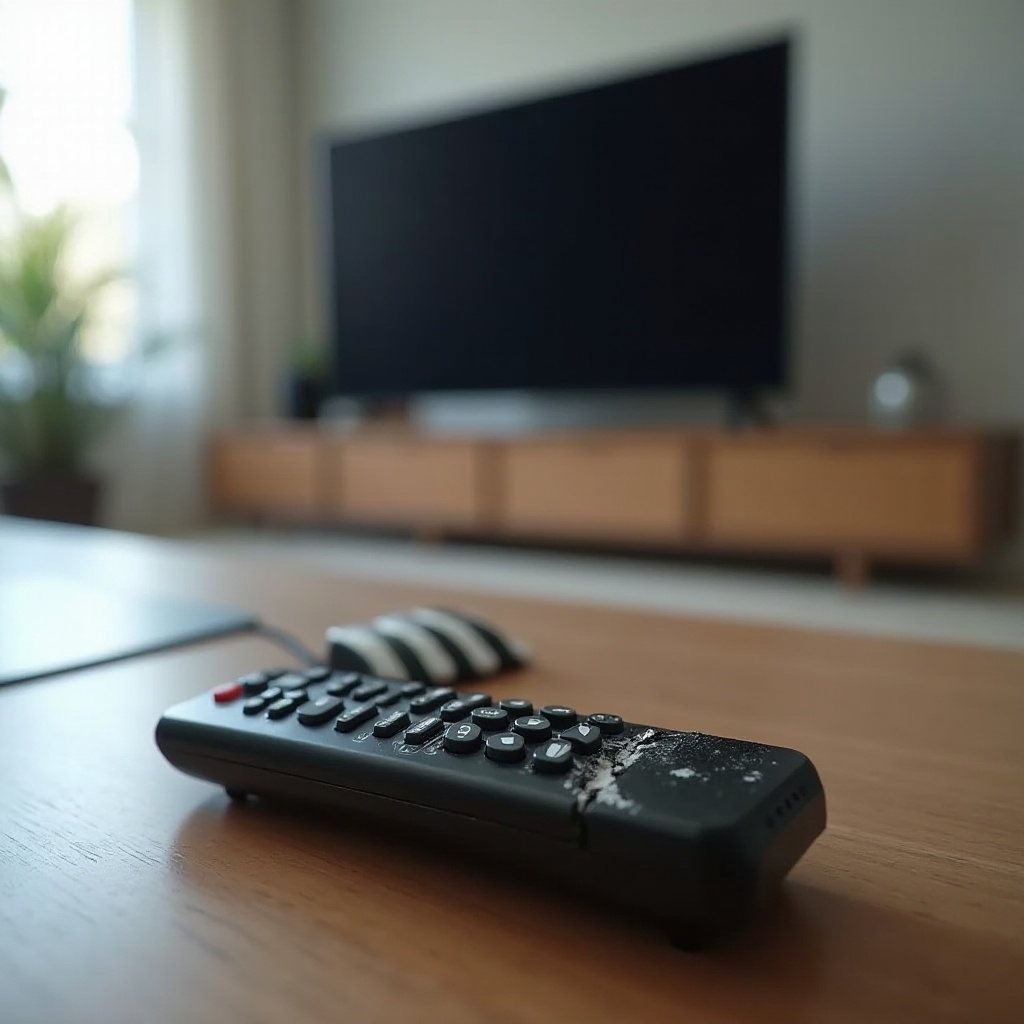
Not every ‘Onn TV remote not working’ problem is subtle. Sometimes you can see the cause: a cracked case, sticky buttons from a spill, or a remote that bounced off the floor one too many times.
Physical damage can break internal parts that cannot be reset or cleaned away. You should inspect the remote carefully and decide whether it still makes sense to try to save it.
Common physical damage symptoms (drops, cracks, liquid)
Look for these obvious warning signs:
- Cracked or split plastic housing.
- Buttons that are stuck, sunken, or tilted.
- Rattling sounds when you gently shake the remote.
- Sticky buttons or residue from drinks or food.
Any of these can interfere with the remote’s ability to send signals or register button presses.
What to do after spills or moisture exposure
If the spill happened recently, you can sometimes limit the damage.
- Remove the batteries from the remote right away.
- Gently shake the remote with the opening facing down to encourage liquid to drain.
- Wipe the outside with a dry, soft cloth.
- Place the remote in a dry, ventilated area for 24 to 48 hours.
Avoid using high heat, ovens, or microwaves, and be cautious with hairdryers. Too much heat can warp plastic or damage electronic components.
When DIY repair is risky and not worth the effort
You may find online guides that show how to open and repair remotes. However:
- Tiny parts and rubber membranes are easy to damage or misplace.
- A small slip with a tool can break a circuit board.
- Replacement Onn-compatible remotes are usually affordable.
If the remote shows clear physical damage and basic drying or cleaning does not help, replacing the remote is usually faster, cheaper, and less stressful than attempting a full DIY repair.
Using Apps and Universal Remotes When Your Onn Remote Fails
If your original remote is lost, broken, or clearly dead, you do not have to give up and stare at a blank screen. There are several ways to regain control of your Onn TV without waiting for an official replacement, especially if you own an Onn Roku TV.
You can use a smartphone app to drive Roku-based sets and streaming devices. You can also program a universal remote or even use your cable or satellite remote for basic TV functions. These solutions can be temporary backups or permanent replacements.
Control an Onn Roku TV with the official Roku mobile app
For Onn Roku TVs and Onn Roku streaming devices, the Roku mobile app is one of the quickest fixes.
- Install the Roku app on your Android or iOS phone from the official app store.
- Connect your phone to the same Wi-Fi network as your Onn Roku TV.
- Open the app and allow it to search for nearby Roku devices.
- Select your Onn Roku TV from the list.
- Tap the remote icon in the app to open the on-screen remote.
You can now navigate menus, launch apps, adjust volume on supported models, and even use your phone keyboard for faster searches.
Program a basic universal remote with Onn TV codes
A universal remote is another strong option if your Onn TV remote is not working and you want physical buttons.
- Buy a universal remote that lists Onn or Walmart brand TVs in its manual.
- Open the manual and find the section with TV codes for Onn.
- Follow the programming steps, which usually involve:
- Holding a Setup or Program button until a light turns on.
- Entering the code for Onn TVs.
- Testing functions such as Power and Volume.
If some buttons do not work correctly, try a different code from the Onn list until you find a better match.
Using cable/satellite remotes to control power and volume
Many cable and satellite remotes can control TV power and volume.
- Check your provider’s support page (Xfinity, Spectrum, DirecTV, Dish, and others) for remote programming instructions.
- Look up codes for Onn TVs or use the auto-search method if no code is listed.
- Follow the steps to pair the remote with your TV, then test Power and Volume.
These remotes usually do not handle smart features or settings menus but can give you core control while you decide on a long-term remote solution.
Preventing ‘Onn TV Remote Not Working’ Problems in the Future
Once you have your Onn TV responding again, you can avoid many future headaches with a few simple habits. Prevention is easier than troubleshooting, and small steps can greatly extend the life and reliability of your remote.
Focus on battery care, sensor visibility, and software health. Together, these reduce the risk of sudden failures and mysterious glitches.
Battery replacement schedule and storage tips
- Replace remote batteries every 6 to 12 months, even if the remote still works, to avoid sudden drops in power.
- Remove batteries if you will not use the TV for several weeks or longer to reduce the risk of leaks.
- Keep spare batteries in a cool, dry place so you are not stuck when the current set dies.
Keep sensors clean and avoid blocking the TV’s IR window
- Wipe the front of the remote and the TV sensor area with a microfiber cloth every so often.
- Do not stack devices, boxes, or decorations directly in front of the TV’s lower frame where the IR sensor lives.
- If you rearrange your room or mount the TV, sit in your usual viewing spot and confirm a clear line of sight to the sensor.
Keep your Onn TV software updated to reduce glitches
- On Roku models, go to ‘Settings’ > ‘System’ > ‘System update’ and run a manual check now and then.
- Let the TV finish updates and restarts instead of cutting power mid-process.
- After large updates, test your remote and re-pair it if the TV prompts you.
By following these habits, you can reduce the chances of future ‘Onn TV remote not working’ problems and keep your viewing experience smoother.
When to Replace the Remote or Contact Support
After working through these steps, you may reach a point where more troubleshooting does not make sense. Continuing to tweak settings when the hardware has failed only wastes time.
You need to decide whether to replace the remote, try a universal option, or get help for a deeper TV issue. The right move depends on what your tests have revealed so far.
How to know the remote is beyond repair
You likely need a new remote if:
- The remote fails the smartphone IR test and shows no flash even with fresh batteries.
- It has clear physical damage from drops or spills and does not improve after basic drying or cleaning.
- It works only intermittently even after resets, cleaning, and new batteries.
At that point, buying a replacement becomes the most practical option.
Choosing an official vs. third-party replacement remote
You have several paths to a new remote:
- Official Onn or Roku replacement
- Often sold at Walmart, Roku’s official store, or major online retailers.
-
Designed for reliable compatibility with your specific TV or streaming model.
-
Third-party compatible remote
- Usually cheaper but quality can vary.
-
Always check product descriptions and reviews to confirm Onn or Onn Roku support.
-
Universal remote
- Ideal if you want to control multiple devices, such as TV, soundbar, and streaming box, with a single remote.
Pick the option that best matches your budget, your need for advanced features, and how many devices you want to control.
When to contact Onn/Walmart or Roku support
You should reach out to support when:
- Your TV is still under warranty and will not respond to any remote, including a tested universal remote.
- You suspect a serious hardware issue with the TV’s IR sensor or mainboard.
- System updates, factory resets, and pairing attempts do not resolve ongoing glitches on an Onn Roku TV.
Onn, Walmart, or Roku support can walk you through more advanced diagnostics, confirm warranty status, and recommend repair or replacement options.
Conclusion
A non-responsive Onn TV remote is annoying, but it rarely means you need a brand-new television. By identifying your remote type, checking power and batteries, clearing the IR path, cleaning sensors, re-pairing smart remotes, and testing both remote and TV, you can usually find the cause and fix it.
If the remote turns out to be the weak link, you have strong alternatives: universal remotes, provider remotes, mobile apps, and official replacements all give you ways to control your Onn TV again. With a bit of care in daily use and regular updates, you can also prevent many future ‘Onn TV remote not working’ issues and enjoy your shows with fewer interruptions.
Frequently Asked Questions
Why is my Onn TV not responding to the remote even after changing batteries?
Fresh batteries rule out low power, but other issues can still block the signal. Check that nothing is covering the TV’s IR sensor, such as a soundbar or decor. Use your smartphone camera to see if the remote’s IR LED flashes when you press buttons. If it flashes but the TV still ignores it, the TV’s IR receiver or mainboard may be faulty. If there is no flash at all, the remote itself is likely dead or damaged.
How do I pair or re-pair my Onn Roku TV remote?
Turn on your Onn Roku TV with the power button on the TV. Open the remote’s battery compartment and find the pairing button. Press and hold it for 3–5 seconds until the indicator light starts flashing. Keep the remote close to the TV while a pairing screen appears and follow the on-screen steps. If pairing fails, unplug the TV for 30–60 seconds, plug it back in, turn it on, and try pairing again with fresh batteries.
Can I use my phone as a permanent replacement for an Onn TV remote?
For Onn Roku TVs and streaming devices, you can use the official Roku mobile app on Android or iOS as a long-term remote. Your phone and TV must be on the same Wi-Fi network. The app lets you navigate, control playback, and type with a phone keyboard. For non-Roku Onn TVs, some phones with IR blasters can use IR remote apps, but support varies. Many users keep both a universal remote and the Roku app to ensure they always have a backup.