
Onn TV Blinking Red Light: Complete 2024 Troubleshooting Guide
Introduction
An Onn TV blinking red light can quickly turn movie night into a frustrating tech problem. You press the power button, expect the familiar startup screen, and instead see a small red LED blinking with no picture and no sound. The TV appears dead, but the power light says otherwise.
This issue is very common with budget-friendly televisions like Onn, especially Onn Roku TV models sold at Walmart. The good news is that the blinking red light does not always mean your TV is permanently broken. Often, the cause is simple: a power glitch, a confused firmware process, or a misbehaving external device.
This guide explains what the Onn TV blinking red light usually means in 2024 and how to fix it step by step. You will start with quick, safe checks and move toward deeper troubleshooting. You will also learn how to tell the difference between a minor glitch and a serious hardware failure, when to contact Walmart or Onn support, and how to avoid this problem in the future.
By the end, you will know exactly what to try, in what order, so you do not waste time guessing or risk damaging your TV.
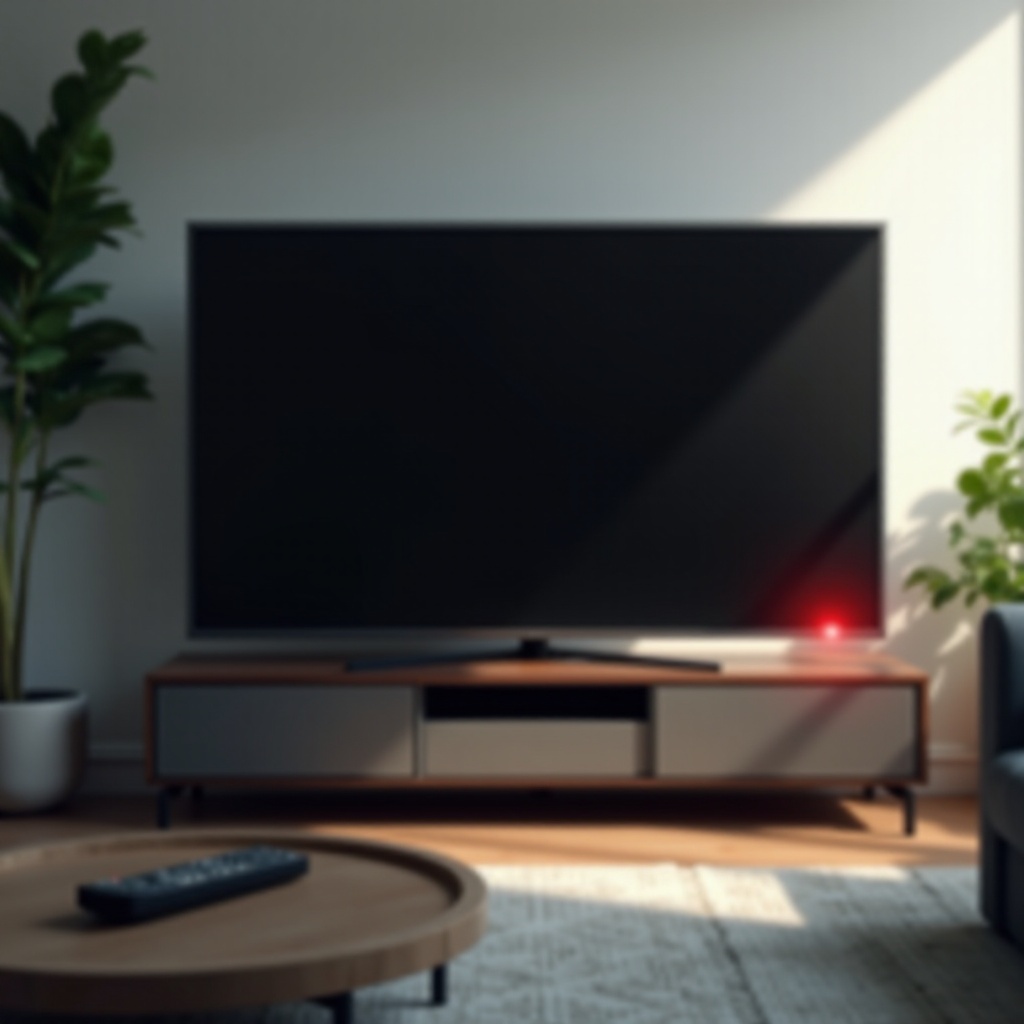
What the Blinking Red Light on an Onn TV Means in 2024
When your Onn TV starts blinking red, it is signaling that something is wrong with power or startup. That tiny LED indicator acts as a basic error signal, even though Onn does not publish detailed blink codes like some premium brands.
Typical Power and Startup Error Signals
Most Onn TVs use the red LED to show three basic conditions:
- Standby mode: Solid red light, TV is off but ready to power on.
- Powering on: Light may briefly change or flicker as the TV boots.
- Error state: Blinking red light, usually with no picture and no sound.
A blinking red light usually means the TV tried to start but hit a problem. This might be caused by:
- Insufficient or unstable power
- A firmware or software crash during boot
- A fault in the power board, main board, or backlight
Blinking Red vs Solid Red: How to Tell the Difference
It is important to distinguish these two states:
- Solid red: TV is in standby. It should turn on with the remote or power button.
- Blinking red: TV cannot complete startup or is shutting itself down for protection.
If your TV light stays solid red and the screen stays black, you likely have a startup or remote issue. If it blinks repeatedly after you try to power on, focus on power, firmware, or hardware problems.
When It Is Likely a Simple Glitch vs Serious Hardware Failure
You can often guess the severity by the symptoms:
Likely a simple glitch if:
- The TV turns on sometimes but not always.
- The red light stops blinking after a power reset.
- The TV works normally after a software update or factory reset.
Likely a hardware failure if:
- The red light blinks in every outlet and with every power cable tested.
- You hear clicking sounds from inside the TV when you press power.
- The TV briefly shows the logo, then shuts off and blinks again.
Now that you understand what the blinking red light is trying to tell you, you can start working through safe, basic power checks. These first steps often fix the problem before you need to worry about boards or repairs.
Step 1 – Safety and Basic Power Checks
Before you press buttons or reset firmware, confirm that your Onn TV is getting stable power. Many blinking red light issues turn out to be simple power problems that are easy to fix.
Unplugging Safely and Waiting Before You Start
Start by cutting power safely:
- Turn off the TV with the remote or power button if it still responds.
- Unplug the TV from the wall outlet.
- Wait at least 60 seconds to let internal power drain.
Avoid yanking the cord from a power strip that is overloaded or damaged. If you see sparks, smell burning, or notice heat at the plug, stop and do not reuse that outlet or strip.
Testing Wall Outlets, Power Strips, and Surge Protectors
A bad outlet or surge protector can cause blinking red light errors. To rule this out:
- Plug another device, such as a lamp or phone charger, into the same outlet to confirm it works.
- If you use a power strip or surge protector, bypass it:
- Plug the TV directly into the wall outlet.
- Check if the blinking stops and the TV powers on.
Many cheap power strips degrade over time and fail under the TV’s power draw. If the TV works without the strip, replace the strip.
Checking for Obvious Cable Damage or Loose Connections
Inspect the power cable from end to end:
- Look for cuts, kinks, exposed wires, or burnt spots.
- Make sure the plug sits firmly in the outlet.
- Confirm the cable is fully inserted into the TV’s power port.
If anything feels loose or looks damaged, do not keep using it. A faulty cable can cause intermittent power and blinking red light behavior.
Once you have ruled out basic power issues, you can move on to the most common and often effective fix: a complete power cycle or soft reset.
Step 2 – Power Cycle Your Onn TV (Soft Reset)
A soft reset clears temporary glitches in the TV’s memory and power management. This simple step resolves many ‘Onn TV blinking red light’ complaints without needing advanced work.
Exact Steps to Power Cycle an Onn TV
Follow these steps carefully:
- Turn the TV off if it responds to the remote or physical button.
- Unplug the TV from the wall outlet.
- Wait at least 60–90 seconds.
- While the TV is unplugged, press and hold the physical power button on the TV (not the remote) for 15–20 seconds.
- Release the button, then plug the TV back into the wall.
- Wait 5–10 seconds, then press the power button to turn it on.
This process drains residual power and resets some internal circuits.
Using the Physical Power Button on the TV
Onn TVs usually have a small physical power button:
- Look under the bottom edge or on the back of the TV, often near the center or one side.
- If the remote does not work, use this button to try to turn the TV on after the power cycle.
This ensures that a bad remote is not confusing your troubleshooting. It also confirms that the TV itself can accept power commands.
Why a Soft Reset Often Clears Minor Firmware Glitches
Smart TVs run operating systems that can crash or hang, especially after updates or power flickers. A soft reset:
- Clears temporary memory states.
- Forces the TV to restart fresh.
- Can break a minor boot loop that leads to blinking.
If your Onn TV still shows a blinking red light after a full power cycle, the next step is to inspect the power cord and connection points more closely.
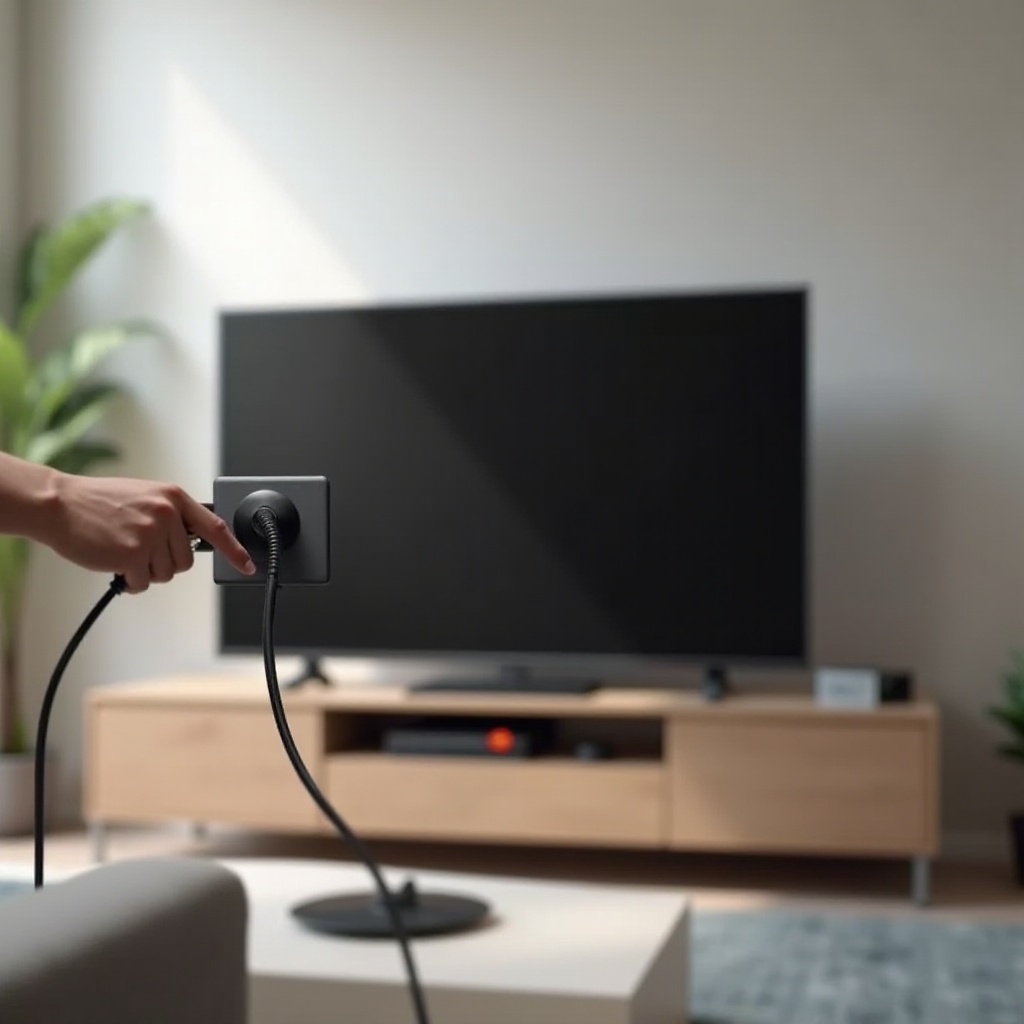
Step 3 – Inspect the Power Cord and Connection Points
Even if the outlet works, a weak or loose connection at the TV can still cause power faults and blinking lights. A careful check here can save you from assuming a major failure too early.
Ensuring the Power Cord Is Fully Seated in the TV
Carefully check the TV end of the power cable:
- Push the connector firmly into the TV’s power port until it feels snug.
- Wiggle it gently to see if it moves; it should not feel loose.
- Inspect the port for dust, bent pins, or visible damage.
A half-inserted plug can allow just enough power for the LED to blink, but not enough to boot the TV.
Signs Your Power Cable May Need Replacing
Replace the power cable if you notice:
- Frayed or cracked insulation
- Exposed copper wires
- Burn marks or melted plastic
- The cable becomes unusually warm during use
Never tape over damage or twist the cable tightly to ‘fix’ it. That is unsafe and can worsen the problem.
When to Try a Different Compatible Power Cord
If your Onn TV uses a detachable, standard-style power cable:
- Test the TV with a known-good compatible cable from another device, such as a monitor or PC.
- If the blinking stops and the TV powers on, your original cable is likely faulty.
If the cable and port look fine and the problem persists, the next logical step is to rule out external devices as a cause of the blinking red light.
Step 4 – Disconnect HDMI, USB, and Other External Devices
External devices can cause boot errors, power surges, or firmware conflicts that lead to a blinking red light. Before you blame the TV’s hardware, make sure an accessory is not at fault.
How External Devices Can Trigger Red Light Errors
Devices that can cause issues include:
- Game consoles such as Xbox, PlayStation, or Switch
- Streaming sticks like Roku, Fire TV, or Chromecast
- Soundbars, AV receivers, or external speakers
- USB drives or external hard drives
A bad HDMI signal, a short in a device, or a failing accessory can stop the TV from booting correctly.
Testing the TV With Only the Power Cable Connected
Perform a clean test:
- Turn the TV off and unplug it.
- Disconnect all HDMI cables, USB devices, antenna cables, and audio cables.
- Leave only the power cable connected.
- Plug the TV back in and try to power it on.
If the TV now turns on without blinking, an external device is the culprit.
Adding Devices Back One by One to Find the Culprit
To identify which device causes the problem:
- Turn off the TV and unplug it again.
- Connect one device, for example your game console, to an HDMI port.
- Plug the TV in and power it on.
- If it works, repeat with the next device.
When the blinking red light returns after connecting a specific device, you have likely found the problem source. Leave that device disconnected or replace its cable and test again.
If your Onn TV still blinks red with nothing attached, the problem is likely within the TV’s own system. At this stage, a full factory reset using the physical reset button is the next logical move.
Step 5 – Hard Reset Your Onn TV Using the Reset Button
A hard reset, also called a factory reset, restores your Onn TV to its original settings. This can fix deep software or firmware issues that a soft reset cannot touch.
Locating the Reset Button on Onn Roku TVs
Most Onn Roku TVs have a small reset pinhole:
- Look on the back or side of the TV near the HDMI ports or power input.
- It may be labeled ‘Reset’.
- You will need a paperclip or pin to press it.
Check your specific model’s manual or the online support page if you cannot find it easily.
How Long to Press and Hold for a Full Reset
To perform a hard reset:
- Make sure the TV is plugged in and the red light is on, whether blinking or solid.
- Insert a paperclip into the reset hole.
- Press and hold the reset button for at least 10–15 seconds.
- Release the button and wait for the TV to restart.
If the screen turns on, you will see the initial setup screen, just like when the TV was new.
What Settings and Apps You Will Lose After a Hard Reset
A factory reset will:
- Erase Wi‑Fi settings and Roku account data.
- Remove all installed channels and apps.
- Clear picture, audio, and input preferences.
You will need to:
- Reconnect to your Wi‑Fi network.
- Sign in to your Roku or streaming accounts again.
- Re-add your favorite streaming channels.
If the hard reset does not bring the TV back to life, or if the blinking red light quickly returns, overheating and ventilation should be checked next to rule out thermal shutdowns.
Step 6 – Check for Overheating and Ventilation Problems
Overheating can cause your Onn TV to shut down and blink red as a protection measure. This can happen even in relatively new units, especially in tight spaces.
Common Signs Your Onn TV Is Overheating
Watch for the following behaviour:
- The TV runs for a while, then turns off and blinks red.
- The back of the TV feels hot to the touch.
- The TV sits in a tight cabinet or is pressed close to a wall.
Overheating can damage internal components if it continues over time.
Proper Clearance Around the TV and Stand
To improve airflow around your Onn TV:
- Leave at least 2–4 inches of space behind the TV.
- Avoid stacking devices such as consoles or set-top boxes directly on top of or under the TV.
- Do not cover vents with cloths, decorations, or wall mounts that block airflow.
If possible, move the TV to a more open spot and see if the blinking problem happens less often.
Letting the TV Cool Down Before Testing Again
If you suspect overheating:
- Turn the TV off and unplug it.
- Let it cool for 30–60 minutes.
- Make sure vents are clear and the TV has space.
- Plug it back in and try to power on again.
If it works after cooling but fails again later, overheating is likely part of the problem. However, if the blinking persists even with good ventilation, software and firmware should be checked next, assuming the screen can still turn on.
Step 7 – Software and Firmware Fixes (If the Screen Turns On)
If your Onn TV sometimes boots but still shows a blinking red light at other times, outdated or corrupted software may be involved. Fixing the system software can stabilize the TV and reduce power-related crashes.
Updating Roku OS or Onn TV Firmware in 2024
To update when the TV is working:
- Press the Home button on your Roku remote.
- Go to Settings > System > System update.
- Select ‘Check now’.
- If an update appears, install it and wait for the TV to restart.
Updates in 2024 often include stability fixes that reduce crashes and power issues that can trigger the blinking red light.
Restarting the System from the Settings Menu
A system restart can help if the TV feels sluggish or glitchy:
- Go to Settings > System > Power.
- Choose ‘System restart’ (or ‘Restart’ on some models).
- Confirm and let the TV reboot.
This method is safer than pulling the power cord and reduces the risk of corrupting the operating system.
Removing Recently Installed Apps That May Cause Crashes
Sometimes a buggy channel or app can trigger crashes and boot loops:
- Think about what you installed shortly before the blinking started.
- Highlight that channel on the Home screen.
- Press the star (*) button on the remote.
- Select ‘Remove channel’.
After removing suspicious channels, restart the TV again using the menu. If software fixes do not stop the blinking, you may be dealing with hardware problems, which require a different approach.
Step 8 – Spotting Possible Hardware Failures (Power Board, Main Board, Backlight)
If none of the steps above fix your Onn TV blinking red light, hardware issues become more likely. You cannot always be 100 percent sure without opening the TV, but you can recognize common signs that point in that direction.
Symptoms That Point to a Failing Power Board
A failing power board may show these symptoms:
- Continuous blinking red light with no picture, on any outlet or cable.
- Clicking sounds from inside the TV when you try to power on.
- The TV turns on briefly, then shuts off and blinks again.
The power board regulates voltage. When it fails, the TV protects itself by refusing to fully start.
Using a Flashlight Test to Check for Backlight Issues
Sometimes the TV is actually on, but the backlight fails, making the screen look completely black:
- Turn the TV on, even if the screen looks black.
- Darken the room.
- Shine a flashlight at an angle on the screen.
If you see faint images or menus under the light:
- The main board likely works.
- The backlight system is probably failing.
A bad backlight can cause the TV to shut down and blink if it detects a fault in the lighting circuit.
When the Main Board Is the Likely Problem
The main board handles processing, inputs, and communication between components. Signs of main board trouble include:
- The TV shows the logo, then freezes or reboots repeatedly.
- Some inputs never work, even though others do.
- The TV responds oddly to commands, then eventually blinks red and shuts off.
Board-level repairs usually require a professional. At this point, it is wise to consider warranty and service options before attempting any DIY fixes that could void coverage or cause further damage.
Step 9 – Warranty, Walmart Returns, and Professional Repair Options
When simple fixes fail, the best option is to check coverage and support. Since Onn is Walmart’s house brand, most support and service options run through Walmart and official partners.
Verifying Your Warranty Status for 2024 Purchases
To check warranty status:
- Look up your purchase in your Walmart account or find your paper receipt.
- Most new Onn TVs include a limited manufacturer warranty, often around one year.
- Note your TV’s model number and serial number from the label on the back of the TV.
If your TV is within the warranty period, you may qualify for repair, replacement, or a refund depending on Walmart’s current policies.
What Walmart and Onn Support Typically Request
When you contact support, be ready to provide:
- Proof of purchase, such as a receipt or online order number.
- Model and serial number of the TV.
- A clear description of the issue, for example ‘Onn TV blinking red light and not turning on’.
- Steps you have already tried, such as unplugging, resets, or using different outlets.
This helps support staff skip basic scripts and move faster toward a solution that matches your situation.
Repair vs Replacement: When a New TV Makes More Sense
For out-of-warranty TVs:
- Power board or backlight repair can be costly compared to a budget Onn TV’s price.
- If the repair quote approaches half or more of a new TV’s cost, replacement is usually the smarter choice.
- If you choose to replace, consider investing in:
- Better surge protection.
- Slightly higher-end models with stronger warranty support.
Whether you repair or replace, you can still prevent future blinking red light problems with a few simple habits and accessories, which we will cover next.
How to Prevent Onn TV Blinking Red Light Issues in the Future
Prevention saves you time, money, and frustration. A few small changes can greatly reduce the chance of seeing the blinking red light on your Onn TV again.
Using Quality Surge Protectors and Voltage Protection
Power quality has a direct impact on your TV’s life span:
- Use a reputable surge protector rated for home theater or electronics use.
- In areas with unstable power, consider a voltage regulator or uninterruptible power supply.
- Avoid plugging your TV directly into outlets that frequently trip, spark, or feel loose.
These devices buffer your TV from power spikes and dips that can damage boards and lead to persistent errors.
Avoiding Frequent Hard Power Cuts and Plug Pulling
Try to avoid these habits:
- Unplugging the TV to turn it off every day.
- Cutting power at the strip while the TV is on.
- Using smart plugs to abruptly kill TV power instead of shutting down first.
Instead, use the remote or physical power button, let the TV shut down normally, and only unplug when necessary.
Regular Reboots, Updates, and Proper Shutdown Habits
Good habits that keep your Onn TV stable include:
- Restarting the TV once every week or two using the system menu.
- Checking for system updates regularly and installing them when available.
- Letting updates finish completely before unplugging the TV or switching outlets.
These steps keep the software stable and reduce the chance of firmware-related boot problems that lead to a blinking red light.
Conclusion
An Onn TV blinking red light does not automatically mean your television is dead. In many cases, the cause is something simple: unstable power, a confused boot sequence, a bad cable, or a problematic external device. By working through the steps in this guide, from checking outlets and power cycling to inspecting cables, disconnecting devices, and using the reset button, you can often bring your TV back without paying for repair.
When these fixes fail, signs like persistent blinking, clicking sounds, repeated shutdowns, or faint images without backlight point to internal hardware issues. At that stage, check your warranty, contact Walmart or Onn support, and weigh repair costs against the price of a replacement TV. Whatever you decide, use surge protection, good ventilation, and clean shutdown habits going forward to reduce the chances of seeing that blinking red light again.
Frequently Asked Questions
Why is my Onn TV blinking red but not turning on even after a reset?
If your Onn TV still blinks red after soft and hard resets, the issue may be hardware-related. Common causes include a failing power board, a shorted backlight circuit, or a faulty main board. First, confirm the outlet and surge protector work, test a different power cable if possible, and disconnect all HDMI and USB devices. If the blinking red light continues with only the power cable connected, contact Walmart or Onn support with your model, serial number, and proof of purchase to ask about warranty coverage or repair options.
Can a recent 2024 firmware update cause the blinking red light issue?
A firmware update can occasionally lead to boot problems if the TV lost power during the update or if the update glitched. If you noticed the blinking red light right after a 2024 update, try a long power cycle and then a hard reset using the physical reset button. If the TV boots successfully, check for another system update to ensure you are on the latest stable version. If the TV never reaches the home screen and keeps blinking, the firmware may be corrupted and you may need professional service or support from Onn or Walmart.
Is it safe to keep using my Onn TV if the red light blinks occasionally but still works?
Occasional blinking followed by normal operation usually points to minor power or software hiccups, but you should not ignore it. Make sure the TV has good ventilation, use a quality surge protector, and keep the system software up to date. If the blinking becomes more frequent, the TV starts shutting down on its own, you hear clicking, or you see flickering or loss of backlight, stop using it and have it checked. Continuing to use a TV with potential power board or backlight issues can lead to further damage and higher repair or replacement costs.