
Beats Studio 3 Blinking White Light: Causes, Fixes, and Prevention
Introduction
A blinking white light on your Beats Studio 3 can be worrying, especially when your headphones will not connect, charge, or turn on. The tiny LED is the only visible status indicator you have, yet its patterns are not always clear. Many users see the Beats Studio 3 blinking white light and assume the headphones are dead, when the problem is often simple and fixable.
This guide explains what that blinking white light actually means, how to diagnose the cause, and how to fix it step by step. You will learn to handle common issues such as power glitches, charging errors, Bluetooth pairing problems, and early signs of battery failure. You will also see when it is time to stop troubleshooting and contact Apple or Beats support.
By the end of this article, you will know how to read the LED patterns, restore your Beats Studio 3 to normal use, and reduce the risk of the same blinking white light problem returning.
What the Beats Studio 3 Blinking White Light Actually Means
The LED on your Beats Studio 3 handles several jobs at once. It shows battery status, charging progress, Bluetooth pairing, and error states. The same Beats Studio 3 blinking white light can signal different things depending on when it appears and how it flashes.
Sometimes the blinking white light is normal behavior, for example when the headphones enter pairing mode. At other times, it can indicate a problem such as a connection error, low battery, or a firmware glitch. To choose the right fix, you first need to understand how the LED behaves when everything is working correctly.
Let us look at the normal LED patterns, then compare them with the patterns you see when something goes wrong.
Normal LED Behavior on Beats Studio 3
Under normal conditions, the LED indicators on Beats Studio 3 follow patterns like these:
- Battery level
- Multiple solid white LEDs: medium to high charge.
- One solid white LED: low battery but still usable.
-
One blinking white LED while unplugged: very low battery that needs charging soon.
-
Charging
- White LEDs turning on in sequence: charging in progress.
-
All LEDs solid: battery is full or nearly full.
-
Power on and pairing
- Short white flashes at startup: the headphones are powering on.
- Blinking white light when entering pairing mode: the headphones are searching for a device.
When the LED follows these patterns and changes over time, your Beats Studio 3 is usually working as expected.
Blinking White vs Solid White vs Other Colors
The timing and context of the LED pattern matter more than the color alone:
- Solid white generally means the headphones are on and have enough battery.
- Slow blinking white often means pairing mode or searching for a Bluetooth device.
- Fast blinking white can indicate a connection problem, a reset in progress, or a minor error.
- Red or amber lights, if they appear, typically signal very low battery or another alert.
When you notice your Beats Studio 3 blinking white, pay attention to what you are doing at that moment. Are you plugging them in to charge, pressing the power button, or trying to connect to your phone? The answer helps you match the pattern to a common scenario, which is what we cover next.
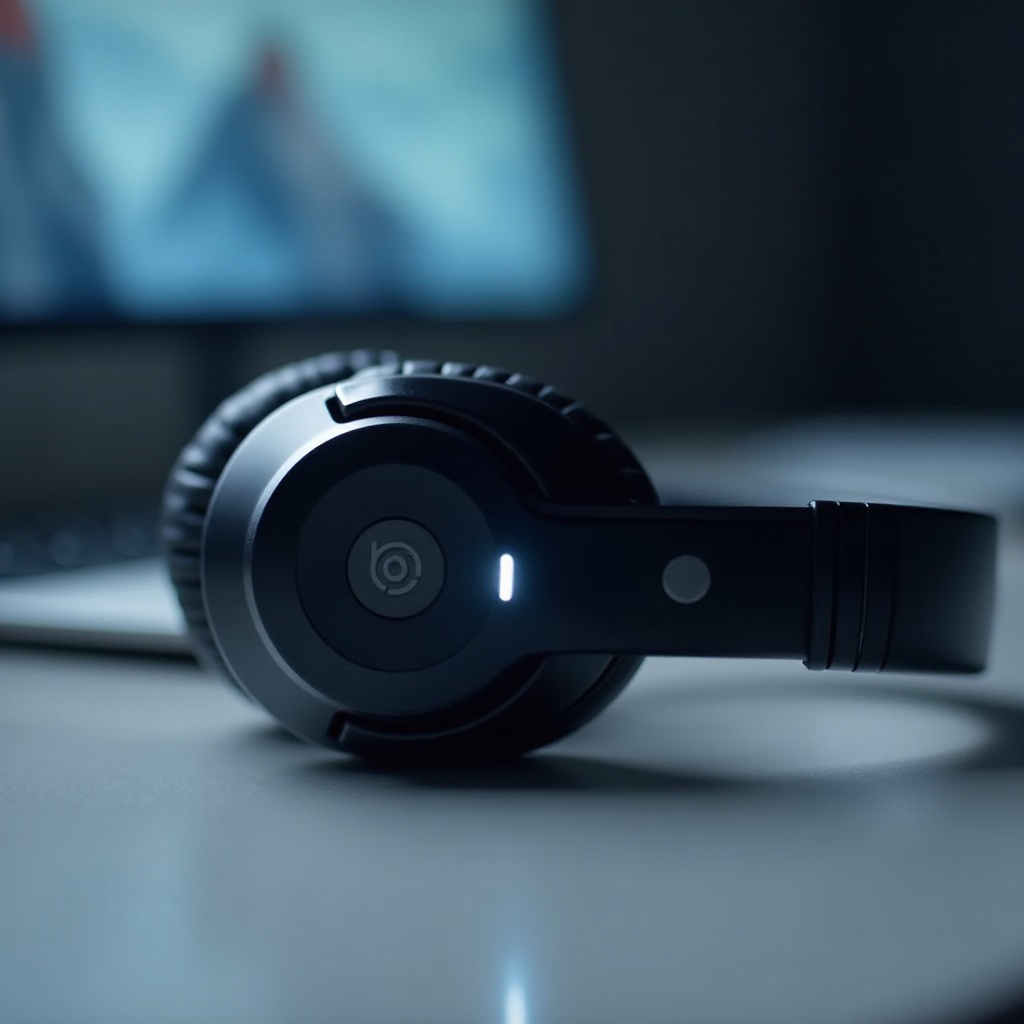
Common Situations When Beats Studio 3 Shows a Blinking White Light
The Beats Studio 3 blinking white light usually appears in a few repeatable situations. If you can identify which one matches your experience, you can avoid guesswork and jump straight to the most likely fix.
Here are the three scenarios most users report when they see a blinking white LED.
Blinking White and Will Not Turn On
In this case, you press the power button and see the LED blink white a few times or flash repeatedly, but the headphones never fully power on. Your phone or computer may not detect the Beats at all, and no sound plays.
This behavior often points to:
- Very low battery that cannot boot the headphones fully.
- A firmware or software glitch during startup.
- A temporary power error that a reset can usually clear.
Blinking White While Charging
In this situation, you plug your Beats Studio 3 into a charger, but the LED does not show the usual charging sequence. Instead, you see a blinking white light that does not change, or the headphones never seem to gain charge.
This pattern can indicate:
- A weak or faulty charger or cable.
- Dirt or damage in the charging port.
- A battery or charging circuit problem inside the headphones.
Blinking White During Bluetooth Pairing or Use
Sometimes your Beats Studio 3 turned on without issue, but the LED blinks white whenever you try to connect. You might see the headphones appear and disappear in your device’s Bluetooth list, or your connection drops during use.
This behavior usually suggests:
- The headphones are stuck in pairing mode.
- Bluetooth interference or conflicts between several devices.
- A problem with the phone, tablet, or computer rather than the headphones.
Once you know which situation matches your case, it is time to run through some quick checks. These checks help you confirm that the basics, like power and ports, are not the cause before you move to deeper troubleshooting.
Quick Checks Before Deep Troubleshooting
Before you reset anything or assume the hardware has failed, confirm the simple things. Many Beats Studio 3 blinking white light problems vanish once you fix a basic power or connection issue.
These quick checks do not take long and can save you from unnecessary resets or support visits.
Confirm Battery Level and Charging Source
Start with the power source and the battery:
- Press the power button and watch the LED pattern.
- If you see only one blinking white LED while the headphones are unplugged, the battery is almost empty.
- Plug the Beats Studio 3 into a reliable wall adapter instead of a laptop or low-power USB port.
- Let them charge for at least 15 to 20 minutes without interruption.
After a short charge, try turning them on again. If the blinking white light persists with no sign of normal startup, move on to inspecting the cable and port.
Inspect Cable, Adapter, and Charging Port
A large number of charging issues come from the cable, adapter, or port rather than the headphones themselves:
- Disconnect the cable from both the charger and the headphones.
- Check the cable ends for bent pins, fraying, or exposed wires.
- Look into the headphone charging port with a light and inspect for lint, dust, or corrosion.
- If you see debris, gently remove it with a dry, soft brush or a wooden toothpick. Avoid metal tools or liquids.
- Try a different certified cable and a different wall adapter if you have them.
If your Beats Studio 3 behaves normally with one cable but not another, you have likely found the cause.
Test with a Different Device or USB Port
Sometimes the problem is not the headphones but the port or device you use with them:
- If you charge from a computer, try a different USB port, ideally one directly on the computer, not a hub.
- Test charging from a known-good wall charger to rule out low power from a laptop.
- For pairing issues, try connecting the Beats Studio 3 to another phone or tablet.
If the headphones still show the same blinking white light pattern after these checks, it is time to move on to the most effective general fix: restarting or resetting the headphones.
Fix 1 – Restart and Reset Your Beats Studio 3
Many Beats Studio 3 blinking white light issues come from temporary software glitches. A simple restart can clear minor errors, and a full reset can fix deeper firmware problems that affect power and pairing.
You should always try a restart first. If the issue continues, then perform a reset.
How to Perform a Simple Restart
A restart turns the headphones off and on without changing any settings:
- Press and hold the power button until the LEDs turn off.
- Wait about 10 seconds to let the internal circuitry fully shut down.
- Press the power button again to turn the headphones back on.
- Watch the LED behavior and test whether the blinking white light stops and normal operation returns.
If the restart does not help, or the headphones still blink white and do not respond the way they should, continue with a full reset.
How to Reset Beats Studio 3 Step-by-Step
A reset returns the Beats Studio 3 to factory settings and can fix many stubborn issues:
- Make sure your Beats Studio 3 has some charge or is connected to power.
- Press and hold the power button and the volume down ( − ) button at the same time.
- Keep holding both buttons for about 10 seconds.
- Watch for the LED to flash or change pattern, then release both buttons.
- The headphones will restart and usually enter pairing mode.
- On your phone or other device, open Bluetooth settings, forget the old Beats Studio 3 entry, then pair the headphones again as if they are new.
After the reset, use the headphones normally and watch the LED. If the blinking white light only appears while charging, focus on the charging-specific fixes next.
What a Reset Can and Cannot Fix
A reset can fix:
- Firmware glitches that cause strange LED patterns.
- Bluetooth pairing problems where devices will not connect.
- Some power-on issues where the headphones get stuck during startup.
A reset cannot fix:
- A dead or physically damaged battery.
- A broken or loose charging port.
- Internal hardware damage from drops or moisture.
If your Beats Studio 3 blinking white light problem appears mostly during charging or comes with clear charging issues, the next step is to look more closely at how the headphones charge.
Fix 2 – Solve Blinking White Light Issues While Charging
When the Beats Studio 3 blinking white light appears mainly while the headphones are plugged in, the underlying issue usually relates to power delivery, cable quality, port condition, or battery health. The goal is to see whether the headphones can charge properly under ideal conditions.
Before you assume a faulty battery, it is important to rule out external causes.
Identify Normal vs Problem Charging Indicators
Normal charging behavior looks like this:
- The LEDs gradually fill up or change as the battery charges.
- The pattern shifts over time, showing progress.
- The headphones may feel slightly warm but not hot.
Potential problem signs include:
- A single white LED that blinks endlessly without change.
- No progress in the LED pattern even after 30 to 60 minutes of charging.
- The headphones become very hot, or you notice a strange smell while charging.
If you see these warning signs, disconnect the charger. Then move on to cleaning and reseating the cable and port.
Clean and Re-seat the Charging Cable Safely
A poor physical connection at the port can cause both charging failures and odd LED behavior:
- Unplug the cable from both the charger and the headphones.
- Carefully inspect the ends of the cable for damage or dirt.
- Look inside the headphone charging port and remove any visible lint with a soft, dry brush or a wooden toothpick.
- Do not use metal tools or liquids, as they can damage components.
- Plug the cable back in firmly until it is fully seated in the port.
- Try a different wall adapter to ensure steady power.
After cleaning and reseating, allow the Beats Studio 3 to charge for at least 20 to 30 minutes, then test the power button again. If the blinking white light persists and the battery never seems to gain charge, the problem may be inside the headphones.
When the Battery or Charging Circuit May Be Faulty
Certain patterns suggest a deeper hardware issue:
- The headphones work only while plugged in and power off as soon as you disconnect the cable.
- The LEDs always blink white with no sign of charging progress.
- Charging causes noticeable heat or a burning smell.
If you see any of these symptoms, it is safer to stop charging and avoid further DIY attempts. However, before assuming a complete hardware failure, it makes sense to check whether the blinking white light comes from Bluetooth pairing issues instead of charging problems.
Fix 3 – Resolve Bluetooth and Pairing Problems
If your Beats Studio 3 turns on and holds a charge but the blinking white light appears during pairing or connection, the problem is likely in the Bluetooth connection rather than the battery. This is common when the headphones have been paired with many devices or when a device’s Bluetooth cache behaves unpredictably.
Clearing old connections and re-pairing often restores stable performance and stops the confusing blinking.
Forget and Re-Pair on iPhone and iPad
To refresh the connection on iOS devices:
- Open the Settings app and go to Bluetooth.
- Find the Beats Studio 3 in the list of devices.
- Tap the ‘i’ or info icon next to the name.
- Choose ‘Forget This Device’ and confirm.
- Turn Bluetooth off, wait a few seconds, then turn it back on.
- Put your Beats Studio 3 into pairing mode by holding the power button until the LED starts blinking.
- When the headphones appear in the Bluetooth list again, tap to pair.
After you re-pair the headphones, check whether the connection is stable and the blinking white light stops.
Forget and Re-Pair on Android, Windows, and Mac
On Android:
- Open Settings and go to Bluetooth.
- Tap the gear icon next to the Beats Studio 3 entry.
- Choose ‘Unpair’ or ‘Forget’.
- Toggle Bluetooth off and back on.
- Put the headphones into pairing mode and pair them again from the device list.
On Windows:
- Open Settings and then Bluetooth & devices.
- Click the Beats Studio 3 and select ‘Remove device’.
- Turn Bluetooth off, wait a moment, then turn it on again.
- Put the headphones in pairing mode and add them back.
On Mac:
- Open System Settings (or System Preferences) and go to Bluetooth.
- Find the Beats Studio 3 and click the ‘x’ next to it to remove.
- Turn Bluetooth off and then on again.
- Put the Beats into pairing mode and reconnect them.
Reduce Wireless Interference and Multi-Device Conflicts
If the Beats Studio 3 blinking white light appears mainly in crowded wireless environments, interference may be the culprit:
- Turn off Bluetooth on other nearby phones, tablets, or laptops temporarily.
- Move a short distance away from busy Wi-Fi routers or other wireless equipment.
- Make sure the Beats are not trying to auto-connect to several remembered devices at once.
If your headphones still blink white and misbehave after clearing Bluetooth issues, it is time to consider possible hardware or battery defects.
Fix 4 – Spotting Hardware and Battery Issues Behind the Blinking Light
When the Beats Studio 3 blinking white light continues in spite of resets, cable changes, and careful pairing steps, the root cause may be physical rather than software. Over time, batteries degrade, ports wear out, and components can fail from impacts or moisture.
Recognizing the signs of hardware trouble helps you decide if repair or replacement is the better option.
Signs of a Failing or Degraded Battery
Battery issues usually show up through a few clear symptoms:
- The headphones drop from a medium or high battery level to empty in a short time.
- The Beats take much longer than normal to charge or never reach full.
- The blinking white light appears soon after you unplug the charger, even after a long charge.
If your Beats Studio 3 has seen heavy use or many full charge cycles, the battery may no longer hold a stable charge and could need replacement.
Physical Damage, Moisture, and Port Problems
Physical inspection can reveal issues that affect internal circuits:
- Look for cracks, dents, or obvious stress on the headband and earcups.
- Gently wiggle the charging cable when plugged in and check if the connection feels loose.
- Think about whether the headphones have been exposed to rain, sweat, or accidental spills.
Damage or moisture can lead to corrosion and unstable connections, which in turn can trigger error states and persistent blinking LEDs.
Safety Red Flags You Should Not Ignore
Some warning signs require immediate attention and a stop to all charging attempts:
- A swollen or distorted earcup housing.
- A strong chemical, burning, or plastic smell during charging or use.
- Excessive heat that makes the headphones uncomfortable to touch.
If you notice any of these signs, disconnect the headphones from power right away and avoid using them until a professional checks them.
When to Contact Apple or Beats Support
If you have tried the steps above and your Beats Studio 3 blinking white light problem will not go away, professional help is the next logical step. Persistent power issues, unreliable charging, and hardware symptoms usually need a proper diagnosis.
Apple or authorized Beats service providers can run tests to determine whether the battery, charging circuit, or another component is at fault.
How to Check Warranty and Coverage in 2024
To see if your Beats Studio 3 qualifies for warranty repair or discounted service:
- Find the serial number on the headband or in your device’s Bluetooth details.
- Visit the official Apple ‘Check Coverage’ page.
- Enter the serial number and follow the on-screen steps.
- Review the warranty status and see what service options are available.
If you bought AppleCare or extended coverage, you may be able to get a battery replacement or repair at reduced cost.
What Information to Prepare for Support
Before you contact Apple or Beats support or book a store visit, prepare a few details:
- Note when the Beats Studio 3 blinking white light first appeared and what you were doing at the time.
- List the troubleshooting steps you have already tried, such as resets, cable changes, and tests on other devices.
- Bring your charging cable and adapter, since technicians may want to test them too.
- Be ready to describe any unusual sounds, smells, or physical damage.
Clear information helps support staff diagnose the issue faster and recommend the best solution.
Repair vs Replacement: Which Makes More Sense?
Choosing between repair and replacement depends on a few key factors:
- Whether the headphones are still under warranty.
- The cost of the repair compared with a new pair.
- The age and overall condition of your Beats Studio 3.
If the battery is worn out and the headphones are several years old, replacing them might be more cost-effective than paying for a major repair. If the problem is limited to a charging port or a single part and the rest of the headphones are in good shape, repair may be the better option.
How to Prevent Future Beats Studio 3 Blinking White Light Issues
Once you have solved the current issue, it makes sense to prevent the Beats Studio 3 blinking white light from returning. Good charging habits, careful storage, and up-to-date software all help keep your headphones stable and reliable.
Small changes in how you use and care for your Beats Studio 3 can add months or even years to their lifespan.
Smart Charging Habits for Longer Battery Life
You can protect the battery and cut down on power-related LED problems by following a few simple rules:
- Use quality, certified cables and wall chargers whenever possible.
- Avoid draining the battery to zero on a regular basis; recharge when it gets low.
- Unplug the headphones after they reach full charge instead of leaving them plugged in for days.
- Do not charge in very hot or very cold environments, such as a hot car.
These habits reduce stress on the battery and help prevent unstable behavior that can lead to blinking white light errors.
Proper Storage, Cleaning, and Daily Care
Treat your Beats Studio 3 as you would any premium electronic device:
- Store them in a protective case when you are not using them.
- Keep them away from water, heavy moisture, and strong impacts.
- Wipe the surfaces gently with a soft, dry cloth to remove sweat and dust.
- Avoid bending the headband too far or twisting the earcups.
Good physical care reduces the risk of internal damage and corrosion that can cause persistent LED warnings.
Keeping Firmware and Connected Devices Updated
Software also plays a role in keeping your Beats Studio 3 running smoothly:
- Keep your phone, tablet, or computer updated to recent operating system versions.
- Use the Beats or Apple ecosystem tools, when available, to ensure your headphones have the latest firmware.
- If you see minor connection glitches, remove and re-pair the Beats Studio 3 to clear old Bluetooth data.
Up-to-date firmware and clean Bluetooth profiles make it less likely that you will face repeating blinking white light issues caused by software conflicts.
Conclusion
A Beats Studio 3 blinking white light can be confusing, but it does not always mean your headphones are beyond repair. In many cases, it points to low battery, a simple pairing conflict, or a temporary firmware glitch. By checking your power source, cables, ports, and Bluetooth connections, you can often solve the problem at home in a few minutes.
When the blinking white light continues during charging or appears with heat, strange smells, or obvious damage, you should take it more seriously. Those signs can point to battery or hardware faults that require professional service. At that stage, checking your warranty and speaking with Apple or an authorized Beats provider is the safest path.
Use this guide as a clear roadmap: identify your exact symptom, apply the matching fix, and seek help when DIY steps are no longer enough. With the right care and a bit of troubleshooting, your Beats Studio 3 can stay reliable, connected, and free of confusing blinking LED patterns for a long time.
Frequently Asked Questions
Why is my Beats Studio 3 blinking white and not connecting?
A blinking white light with no connection usually means the headphones are stuck in pairing mode or cannot see a stable device. Reset the Beats Studio 3, forget them in your device’s Bluetooth settings, toggle Bluetooth off and on, then pair again. Also turn off Bluetooth on other nearby devices to reduce conflicts.
Can a blinking white light on Beats Studio 3 mean the battery is dead?
Yes, a blinking white LED can mean the battery is critically low, especially if you see just one blinking LED while unplugged. Charge the headphones with a reliable wall adapter and cable for at least 20 to 30 minutes. If they still will not hold charge or shut off as soon as you unplug them, the battery may be degraded and require service.
How do I know if my Beats Studio 3 needs professional repair in 2024?
You likely need professional repair if the Beats Studio 3 blinking white light persists after restarts, resets, cable changes, and re-pairing attempts. Other warning signs include overheating, strange smells during charging, visible physical damage, or a battery that will not hold any charge. In these cases, check your warranty status on Apple’s coverage page and contact Apple or an authorized Beats service provider.