
Ring Camera Offline but WiFi Is Working? A Complete Smart Home Fix Guide
Introduction
Seeing a ‘Ring device offline’ alert while your WiFi works on everything else is frustrating, especially when you rely on that camera to watch your door or driveway. Your phone streams videos fine, your laptop loads pages fast, but your Ring camera refuses to come online.
This issue is common in smart homes. The problem usually is not that the internet is down. Instead, the Ring camera and your network fail to talk to each other in a stable way. That can be due to weak signal, power issues, router settings, or conflicts with other devices.
This guide walks you step by step through the most effective fixes when your Ring camera is offline but WiFi is working. You will learn how to check power, test WiFi at the camera, adjust router settings, reconnect your device, and strengthen your smart home network so your cameras stay online.
You will start by understanding what ‘offline’ really means in the Ring app. Then you will move through a clear sequence of checks and fixes, from quick basics to more advanced network tweaks, so each step builds on the last.
Why Your Ring Camera Says ‘Offline’ Even Though WiFi Works
When the Ring app says a camera is ‘offline’, it does not mean your home internet is completely down. It means that specific device cannot maintain a reliable connection to Ring’s servers through your network. You can browse the web and stream movies while your Ring doorbell sits disconnected.
To fix this, you need to know how the system works behind the scenes and what the ‘offline’ status is really telling you about the connection.
What ‘Device Offline’ Means Inside the Ring App
The Ring app checks in with each camera or doorbell over the internet. The device sends periodic updates about its status, signal strength, and events. If the app does not hear from a device for a while, it marks it as offline.
‘Device Offline’ usually indicates:
- The camera cannot reach your router.
- The router cannot pass traffic to Ring’s servers.
- The camera drops the connection too often to be reliable.
- The device has no power and cannot communicate at all.
So even if your WiFi looks fine on other devices, your Ring camera may be stuck on the edge of your network or blocked by a setting.
How Ring Cameras Actually Connect to Your Network
Most Ring cameras connect over 2.4 GHz WiFi, even if your router supports both 2.4 GHz and 5 GHz. Some models can use 5 GHz, but 2.4 GHz remains common because it travels farther and passes through walls better.
The connection flow looks like this:
- Ring camera connects to your WiFi router.
- The router passes traffic to your modem.
- The modem connects to your internet service provider (ISP).
- From there, traffic goes to Ring’s cloud servers and back.
If any step breaks or weakens, your camera may drop offline, even though your phone next to the router works fine.
Why ‘WiFi Is Working’ Does Not Always Mean ‘WiFi Is Stable’
You might think, ‘My WiFi is working; I am watching Netflix.’ But cameras are different from phones:
- They are fixed in one place, often farther from the router.
- They upload video constantly, which needs stable upstream bandwidth.
- They are more sensitive to weak signal, interference, and latency.
Your phone can buffer or switch networks. A Ring camera has less flexibility. It needs a steady link. Even minor network issues can cause it to go offline while other devices limp along.
Now that you understand what ‘offline’ really means, the next step is to confirm the problem inside the Ring app so you do not chase the wrong issue.
Step 1 – Confirm the Problem in the Ring App
Before you reset hardware or change router settings, confirm exactly what the Ring app reports. That helps you avoid guesswork and prevents unnecessary steps.
You want to know whether only one device is affected, what the last online time was, and how Live View behaves. This information will guide your checks in the next sections.
Check Device Status, Last Online Time, and Event History
Open the Ring app and:
- Go to the list of devices.
- Tap the camera or doorbell that shows ‘Offline’.
- Look at the status and note:
- The ‘Device Offline’ message.
- The last time it was online.
- Any recent motion or ring events.
If several Ring devices are offline, the issue likely sits with your router or ISP. If only one device is offline, it may be a local power, signal, or hardware problem.
Test Live View and Note the Exact Error Message
Tap ‘Live View’ for the offline device:
- If Live View fails with a network error, note the wording.
- If Live View works sometimes and fails other times, you may have an intermittent connection.
Keep these details in mind. They guide your next steps as you move to physical checks and start ruling out simple causes.
Step 2 – Power and Hardware Checks You Should Do First
Now that the Ring app confirms the device is offline or unstable, check whether the camera actually has enough power to stay connected. Power issues can mimic WiFi problems, so you should rule them out early.
If the camera has no power or unstable power, no amount of network tuning will fix the offline status. Once you confirm power is solid, you can focus on WiFi.
Battery‑Powered Ring Cameras: Charge Level and Cold Weather
For battery Ring doorbells and cameras:
- Check the battery level in the Ring app (Device Health).
- If it is low, recharge or swap in a fully charged battery.
- If you live in a very cold area, remember batteries struggle in low temperatures. The camera might shut down or disconnect.
Try these steps:
- Bring the device indoors temporarily to warm up.
- Charge the battery fully.
- Reinstall and test again.
Wired Ring Doorbells and Cams: Power Supply and Cabling
For wired models:
- Check that the breaker for that circuit is on.
- Inspect wiring at the doorbell or camera for loose connections.
- If you recently installed the device, confirm that the transformer meets Ring’s power requirements.
When power drops or fluctuates, the camera may reboot or go offline, even though your WiFi works perfectly.
Visual Indicators: Lights, Chimes, and Button Responses
Look at the device itself:
- Does the ring light glow, flash, or stay dark?
- Does pressing the doorbell button trigger any sound or light?
- Do you hear the internal chime (if wired) or any audible indicator?
No lights and no response usually point to a power issue, not WiFi. Once you are confident the device has solid power, you can start testing the WiFi at the camera’s location to see what kind of signal it receives.
Step 3 – Test WiFi Where the Ring Camera Is Installed
With power verified, it is time to see what the WiFi looks like right where the camera sits. Having great WiFi in your living room does not guarantee a strong signal at the front door or garage.
This step helps you understand whether the offline problem comes from weak WiFi coverage at the camera or from a deeper network issue. If the WiFi at that spot is poor, improving it becomes your focus.
Run a Speed Test Near the Camera Location
Use your smartphone:
- Stand as close as you can to the Ring device.
- Connect to the same WiFi network the Ring camera should use.
- Run a speed test using a reliable app or website.
Focus on three values:
- Download speed.
- Upload speed.
- Ping (latency).
Upload Speed, Latency, and Packet Loss for Video Devices
Ring cameras need:
- Enough upload speed to send video out.
- Low latency so data does not lag.
- Minimal packet loss so frames do not drop.
If upload speed is very low or the connection looks unstable, your camera can drop offline even when web pages still load.
Consider:
- Stopping heavy uploads or backups.
- Reducing the number of devices streaming at the same time.
- Contacting your ISP if speeds are far below your plan.
Spotting Network Congestion from Other Smart Home Devices
Smart TVs, consoles, and other smart home devices all compete for bandwidth. If:
- Speeds drop sharply during nights or weekends.
- Multiple 4K streams run at once.
- Cloud backups or large downloads run in the background.
your router or connection may be overloaded.
Once you understand the WiFi quality at the camera location, the next step is to analyze signal strength and physical distance from the router using the tools inside the Ring app.
Step 4 – Check WiFi Signal Strength and Router Distance
Even if speeds look acceptable in tests, the Ring camera may see a weaker and less stable signal than your phone does. The Device Health section in the Ring app provides a more precise view through the RSSI reading.
By checking RSSI and thinking about walls, doors, and obstacles, you can tell whether the camera sits in a bad spot for wireless coverage and decide if you need to move equipment or add hardware.
Understanding RSSI in the Ring App
RSSI (Received Signal Strength Indicator) shows how strong the WiFi signal is at the camera:
- Lower negative RSSI values (for example, closer to -40) usually mean a better signal.
- Higher negative values (for example, -70 or worse) indicate weaker signal and more risk of disconnections.
If your RSSI looks poor, the signal is likely the core problem behind the ‘offline’ message.
How Walls, Doors, and Appliances Block the Signal
Common signal blockers include:
- Brick, concrete, or metal doors.
- Thick interior walls or multiple walls in the path.
- Large appliances such as fridges or microwaves.
- Electrical panels and metal shelves.
If the router sits on the opposite side of the house or on a different floor, the camera may see only a weak, noisy signal.
Temporary Relocation to Prove a Range Issue
To confirm a range problem:
- Remove the camera from its mount if possible.
- Bring it closer to the router.
- Power it and reconnect to WiFi.
- Check if the device comes online and stays stable.
If the camera works near the router but not at its normal spot, you know distance and obstacles are the main issue. With that confirmed, you can look at router settings that may also affect the connection, especially if you changed anything recently.
Step 5 – Make Sure Your Router Settings Support Ring Cameras
Sometimes the signal is fine, but the router configuration prevents the camera from connecting properly. This is especially common after changing WiFi names, passwords, or security options.
By checking band support, SSID visibility, and advanced security features, you can remove invisible barriers that keep your Ring camera offline while WiFi seems to work for other devices.
Enabling 2.4 GHz and Choosing the Right Network Band
Many routers broadcast both:
- 2.4 GHz (better range, slower speed).
- 5 GHz (shorter range, faster speed).
Most Ring devices work best on 2.4 GHz. Check your router admin page and make sure:
- 2.4 GHz is enabled.
- The network name (SSID) is visible, not hidden.
If your router uses the same SSID for both bands, that is usually fine, but some setups work better if you separate them into two names so you can force the camera onto 2.4 GHz.
SSID Visibility, Password Changes, and Guest Networks
Ask yourself:
- Did you recently change your WiFi name or password?
- Did you move the Ring device to a guest network?
If yes, the camera may still try to use old details. Update the connection:
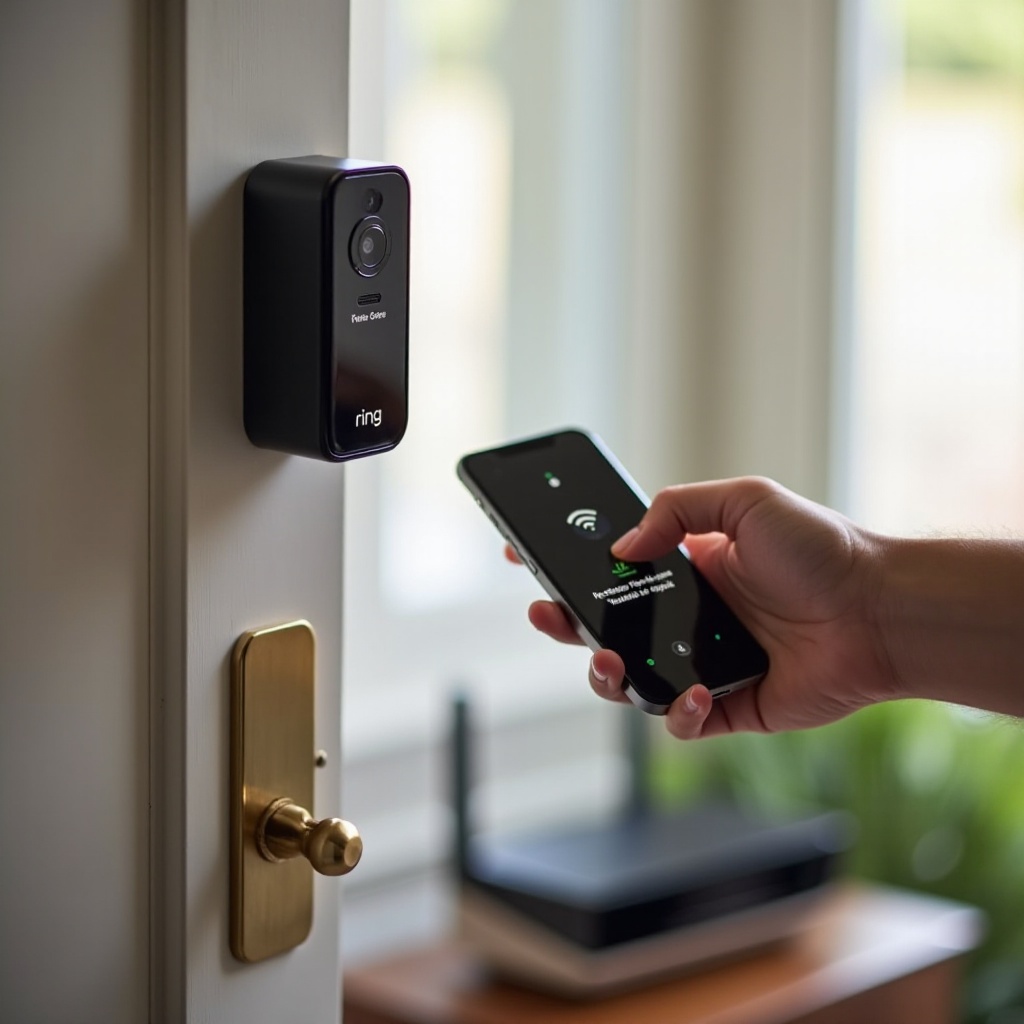
- In the Ring app, go to Device Health.
- Choose ‘Reconnect to WiFi’.
- Select the correct SSID and enter the up-to-date password.
Avoid putting your Ring devices on very restricted guest networks that block communication with other devices on your local network or limit outbound traffic.
Security Modes, MAC Filtering, and Client Isolation
Advanced router features can also block Ring devices:
- Security mode: Some older Ring models may not work well with WPA3-only networks. Try WPA2/WPA3 mixed mode if available.
- MAC address filtering: If enabled, you must add your Ring camera’s MAC address to the allowed list.
- Client isolation (AP isolation): This prevents devices on the same WiFi from talking to each other. It can cause issues with setup and communication.
After adjusting these settings, you are ready to attempt a clean reconnection. That is the focus of the next step.
Step 6 – Reconnect Your Ring Camera to WiFi
With power stable, WiFi tested, and router settings checked, reconnecting the Ring camera often brings it back online for good. This step gives the device a fresh start on the correct network.
You should first try the built‑in reconnect option, then move to a full re‑add if the simpler path fails.
Use the ‘Reconnect to WiFi’ Option in Device Health
In the Ring app:
- Open the device.
- Go to ‘Device Health’.
- Tap ‘Reconnect to WiFi’ or a similar option.
- Follow the on‑screen instructions.
This method keeps your device in your account and usually preserves your existing settings and linked features.
Put the Device into Setup Mode Correctly
If the app asks you to put your Ring device in setup mode:
- Press and hold the setup button (location varies by model).
- Watch for the light pattern that indicates setup mode.
- Confirm in the app when the device is ready.
Be sure you select the correct network and type the WiFi password exactly. A small typo can keep the camera offline even when everything else is correct.
When You Should Remove and Re‑Add the Camera
If reconnection fails several times:
- Remove the device from the Ring app.
- Perform a full setup as if it were new.
- Scan the QR code on the device or box.
- Connect to WiFi again with fresh details.
This step does not delete videos already stored in the Ring cloud for your account, but the device’s local configuration resets. If issues continue even after a fresh setup, you may face an intermittent or more complex network problem, which the next section helps you address.
Step 7 – Fix Intermittent ‘Offline’ Issues in a Busy Smart Home
Sometimes the camera comes back online but goes offline again periodically. That usually points to congestion, interference, or timing patterns in your smart home.
You can often spot a pattern by noting when the camera drops. If it lines up with heavy usage or specific devices, tuning how your network handles traffic can make a big difference.
Offline at Specific Times: Streaming Peaks and ISP Slowdowns
Watch the pattern:
- Does the camera go offline during evenings or weekends?
- Does it drop while everyone streams or games?
- Does it fail when cloud backups or large downloads start?
If yes, your network might be overloaded. Try:
- Reducing the number of simultaneous heavy streams.
- Scheduling backups and big downloads for off‑peak times.
- Upgrading your internet plan or router if you have many devices.
Interference from Other 2.4 GHz Gadgets and Mesh Systems
Many devices share 2.4 GHz:
- Baby monitors.
- Cordless phones.
- Microwaves.
- Other WiFi networks nearby.
Mesh WiFi systems can also confuse some devices when they roam between nodes. To help:
- Place mesh nodes so the camera connects to the closest one.
- Avoid placing nodes too close together, which can cause overlap.
- Consider changing the 2.4 GHz channel to one with less interference.
Creating a Separate IoT Network for Smart Home Devices
Many modern routers let you create a separate WiFi network for smart devices. A dedicated IoT network can:
- Reduce congestion on your main network.
- Keep smart home traffic organized and easier to manage.
- Improve stability for always‑on devices like cameras.
Assign your Ring cameras and other smart devices to that network while keeping phones and laptops on the main network. If you still experience dropouts, you may need more advanced network tuning, which the next section covers.
Step 8 – Advanced Network Tweaks for More Reliable Ring Cameras
If you are comfortable adjusting network settings, a few advanced tweaks can turn an unstable setup into a solid smart home network. These changes help when you have many devices or complex layouts.
These tweaks are optional but powerful. Use them if the basic steps improved the situation but did not fully solve the ‘Ring camera offline but WiFi is working’ problem.
Assigning Static IP Addresses to Ring Devices
Sometimes devices disconnect when their IP address changes. To reduce that risk:
- Reserve an IP address for each Ring camera in your router’s DHCP settings.
- Match each IP to the camera’s MAC address.
- Keep those IPs outside the range used for random assignments if your router requires that.
This does not boost speed, but it can help prevent connection confusion and make troubleshooting simpler.
Adjusting Router Channels and Transmit Power
Too many networks using the same channel cause interference. In your router settings:
- Try changing the 2.4 GHz channel to 1, 6, or 11.
- Avoid ‘Auto’ if it keeps selecting crowded channels.
- Check transmit power and ensure it is not set too low.
After each change, check the Ring app’s RSSI for improvements. Give the network a few minutes to settle before you test again.
Using WiFi 6 or Dedicated Access Points for Outdoor Coverage
If you have many devices and large coverage areas:
- Consider upgrading to a WiFi 6 router or mesh system designed for many clients.
- Install a dedicated access point closer to exterior walls or garages.
- Use outdoor‑rated access points if you need coverage in yards or driveways.
Better hardware and more evenly placed access points can drastically improve the reliability of Ring cameras around your home.
If all these tweaks still do not solve the problem, it might be time to reset the device fully or contact support, which is the focus of the next step.
Step 9 – When to Reset the Ring Camera or Call Support
At this stage, you have checked power, signal, router settings, and network congestion. If the camera still goes offline while other devices stay online, you may have a deeper issue.
A reset can clear software glitches, while detailed information helps support quickly decide if the hardware is faulty. Knowing when to escalate saves time and frustration.
Soft Reset vs Factory Reset: Which to Try First
Start with a soft reset:
- Power cycle the camera: turn it off (or remove power), wait 30 seconds, then power it back on.
- Power cycle the router and modem as well.
If that fails, perform a factory reset on the Ring device by holding the setup or reset button for the time specified in Ring’s documentation. Then set the device up again from scratch in the app.
What Data and Screenshots to Collect Before Contacting Support
If you need to contact Ring support, have this ready:
- Device model and serial number.
- Screenshots of Device Health, RSSI, and error messages.
- Notes on when the issue occurs and what you have tried.
- Speed test results from near the camera.
This information helps support diagnose whether the issue sits with your network or the hardware and speeds up the resolution.
Signs Your Ring Camera Hardware May Be Faulty
Hardware problems are less common but possible. Watch for:
- Camera losing power despite good wiring or a healthy battery.
- Device overheating or behaving erratically.
- No response to reset attempts or setup mode prompts.
If support suspects a hardware fault and your device is under warranty, you may qualify for a replacement. Once you resolve the issue, it is wise to take steps that prevent future offline problems by improving your smart home WiFi strategy.
How to Prevent ‘Ring Camera Offline’ Problems in the Future
Fixing the problem once is good. Preventing it from coming back is better. A few habits and simple planning can keep your Ring cameras online long term.
By planning WiFi coverage around your cameras, checking Device Health regularly, and maintaining your network as you add more smart home gadgets, you can avoid many future ‘offline but WiFi is working’ headaches.
Planning Smart Home WiFi Coverage Around Entry Points
When placing or upgrading your router or mesh nodes:
- Think about front doors, back doors, and garages.
- Place at least one access point within a reasonable distance of each camera.
- Avoid hiding routers in closets or behind metal objects.
Design your network to support security devices, not only your living room TV or office laptop.
Regular Device Health Checks in the Ring App
Make it a routine:
- Check the Device Health page for each camera once a month.
- Watch for declining RSSI or frequent disconnections.
- Investigate small issues before they become full outages.
Early warnings let you fix problems before they affect your security or cause missed recordings.
Network Maintenance as You Add More Smart Devices
Every new smart device adds load to your network. As your smart home grows:
- Review your internet plan and upgrade if needed.
- Consider modern routers or mesh systems that handle many connections.
- Periodically restart your router and modem to clear glitches.
By treating your network as part of your security system, you reduce the chances of seeing ‘Ring camera offline but WiFi is working’ again.
Conclusion
A ‘Ring camera offline but WiFi is working’ message does not mean your system is broken beyond repair. It usually points to one or more fixable issues with power, WiFi strength, router settings, or network congestion.
You started by confirming the problem in the Ring app, then checked power and hardware. You tested WiFi at the camera, reviewed RSSI, and looked at physical distance and obstacles. You adjusted router settings for 2.4 GHz, security modes, and filters. You reconnected the device, tackled intermittent issues, and even explored advanced network tweaks.
If the camera still refuses to stay online, a reset or a call to Ring support, with good notes and screenshots, can uncover hardware faults or more subtle network problems.
With a bit of methodical troubleshooting and some smart planning, you can keep your Ring cameras connected, your live view available, and your smart home security working when you need it most.
Frequently Asked Questions
Why is my Ring camera offline when all my other devices are online?
Your other devices may sit closer to the router, use different WiFi bands, or handle weak signals better. A Ring camera often lives at the edge of your network, where signal is weaker and upload demands are higher. Power problems, poor RSSI, router security settings, or interference can knock the camera offline, even while phones and laptops keep working.
Will I lose my Ring videos if I reset or remove the device?
Removing or resetting a Ring device does not delete videos already stored in your Ring cloud account during your subscription period. Those recordings stay tied to your account, not the specific device configuration. However, you will lose local settings such as WiFi details and some preferences, so you need to set them up again after a factory reset.
Do I need a WiFi extender or mesh system to keep my Ring camera online?
You do not always need extra hardware, but many homes benefit from it. If your Ring camera works well near the router but goes offline in its normal spot, the signal is too weak. A WiFi extender, Ring Chime Pro, or mesh node placed closer to the camera can strengthen coverage and improve RSSI. Choose the option that best fits your home layout, budget, and number of devices.