
Reolink DVR Blinking Red Light: Meaning, Fixes, and Smart Home Troubleshooting Guide
Introduction
A Reolink DVR blinking red light can be alarming, especially when your home security depends on it. That small LED often acts as the first warning that something is not right with your system. It might signal a network issue, a failing hard drive, a power problem, or even a normal process such as a reboot or firmware update.
If you rely on Reolink cameras to protect your home, you need to know exactly what that blinking red light means and how to respond. Guessing or ignoring the issue can lead to missing recordings, gaps in surveillance, or a complete system failure at the worst possible moment.
This guide explains what a Reolink DVR blinking red light usually indicates, how to troubleshoot it step by step, and how to keep your DVR stable in a modern smart home environment. You will learn when the light is normal, when you should worry, and how to prevent problems from returning.
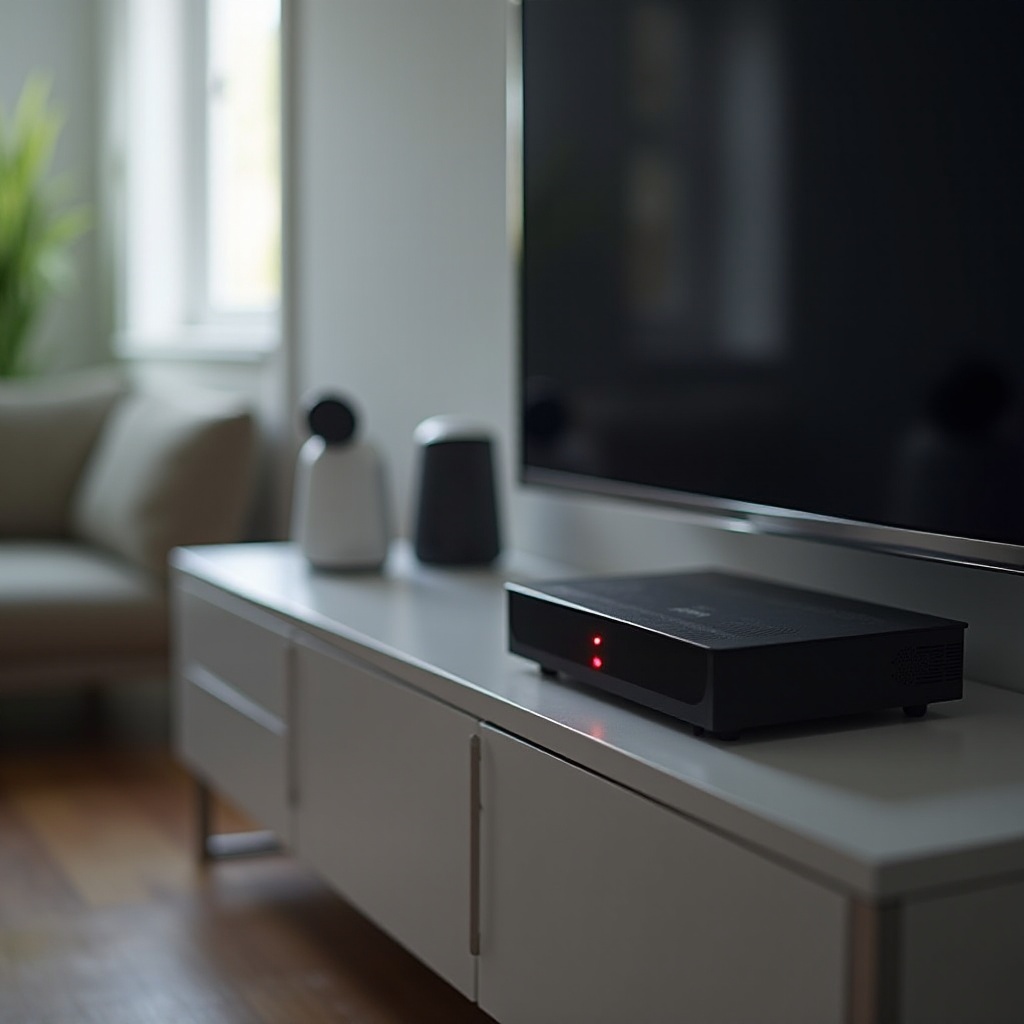
What the Reolink DVR Blinking Red Light Actually Means
Before you start unplugging cables or resetting devices, you need a basic understanding of Reolink DVR LED behavior. The front LEDs are designed to give you quick status feedback without logging into the interface. Interpreting them correctly saves time and helps you avoid unnecessary changes.
Different Reolink DVR and NVR models use slightly different LED layouts. However, the blinking red light usually relates to system status, hard drive activity, or error conditions. By combining what you see on the LEDs with what you see on the monitor or app, you can narrow down the cause very quickly.
Let us break down how the status LEDs typically work and what the different colors and patterns tell you.
Understanding Reolink DVR Status LEDs
Recent Reolink DVRs and NVRs use LEDs to show:
- Power and system status
- Network connection
- Hard drive and recording activity
A red LED may indicate:
- System error or alert
- Hard drive issue (failed, missing, or initializing)
- Recording or disk activity, depending on the model
Always check your exact model’s manual or Reolink’s online support page, because some devices repurpose the same LED for different roles. Still, a blinking red light usually means the DVR is either working hard (for example, recording or initializing) or trying to warn you about a problem.
Blinking Red vs Solid Red vs Other Colors
You can often narrow the issue by looking at the pattern:
- Slow blinking red: Sometimes normal during boot, disk initialization, or recording activity.
- Fast blinking red: Often points to an error or warning condition, such as a disk or system fault.
- Solid red: May indicate a serious error or a specific alert depending on your model.
- Green or blue LEDs: Usually signal normal power and network status.
Combine the light pattern with other clues:
- Do you see error messages on the connected monitor?
- Does the Reolink app show the DVR online or offline?
- Is the DVR making unusual noises, such as clicking from the hard drive?
Once you know how to read the light, you can move on to the most common causes and decide which part of the system to check first.
Common Causes of a Blinking Red Light on Reolink DVRs
A Reolink DVR blinking red light usually falls into a few predictable categories. Most issues come from the network, storage, or power. Identifying which area is affected helps you choose the right fix and avoid random trial and error.
Some causes are harmless and temporary, while others need urgent attention to protect your recordings and system reliability. Understanding these typical causes will make the next troubleshooting steps much easier.
Network Connectivity and Internet Issues
If your DVR depends on a network connection for remote viewing, a blinking red light can indicate:
- Lost LAN or internet connectivity
- IP conflicts with other devices on the network
- Router or modem problems after an outage or reboot
Symptoms include:
- DVR not accessible in the Reolink app
- ‘Network disconnected’ or similar messages on the TV or monitor
- Other smart home devices also acting unstable or dropping offline
In this case, the DVR hardware may be fine, but the network path to it is broken or unstable. Fixing the network often clears the blinking red light.
Hard Drive Errors, Full Disk, or Disk Not Detected
One of the most common reasons for a Reolink DVR blinking red light is a storage problem. Possible issues include:
- Failing or failed hard drive
- Disk not detected due to loose SATA or power cable
- Disk full and unable to overwrite, depending on recording settings
- File system errors after a power cut or improper shutdown
Signs of disk trouble include:
- Clicking, grinding, or buzzing noises from the DVR
- No recordings available in the playback menu
- Error messages such as ‘No HDD’ or ‘Disk Error’
If your DVR cannot write to the disk, it may keep blinking red as it tries and fails to record. That makes hard drive checks a high priority.
Power Supply Problems and Voltage Instability
Power issues can also trigger a Reolink DVR blinking red light. These might come from:
- Faulty or undersized power adapter
- Loose power plugs or damaged cables
- Frequent power outages or flickering voltage
- Overloaded power strips or low-quality surge protectors
You may notice:
- DVR randomly rebooting
- Fans spinning up and down unpredictably
- LEDs flickering or blinking in odd patterns
Power instability can damage both the DVR and the hard drive over time, so it is important to fix it early. Once you know the likely cause, you can start with the simplest corrections.
Step-by-Step Quick Fixes to Try First
Before you open the DVR or replace hardware, work through a series of simple checks. These quick fixes resolve many Reolink DVR blinking red light problems, especially after a storm, outage, or router reboot.
Working through these steps in order keeps your troubleshooting logical and minimizes the risk of causing new issues while you investigate.
Power Cycling the DVR, Router, and Modem
Start with a safe power cycle:
- Turn off the DVR using the menu, if possible, or unplug it.
- Unplug your router and modem.
- Wait 30 to 60 seconds.
- Plug the modem back in and wait until it fully boots.
- Plug in the router and wait for Wi-Fi and LAN lights to stabilize.
- Plug the DVR back in and let it boot completely.
This process clears temporary glitches in the DVR and network equipment and often stops a blinking red light caused by minor software or connection issues.
Checking Cables, Ports, and Physical Connections
Loose or damaged cables can cause network, power, and disk problems. Check the following:
- Power cable firmly connected at both ends
- Ethernet cable seated properly in DVR and router or switch
- HDMI or VGA cable secure so you do not misread a ‘no signal’ issue
- Camera cables (if PoE) firmly plugged into the DVR ports
If possible, swap cables with known-good ones:
- Try a different power outlet or surge protector
- Use another Ethernet cable
- Move the cable to a different router port
If the red light stops blinking after a cable swap or port change, you have likely found the culprit and can avoid deeper changes.
Using the Reolink App and Web Client to Confirm Status
Next, verify what the DVR reports about itself:
- Open the Reolink app or log in to the web client.
- Check if the DVR shows as online or offline.
- Open the device settings and look for:
- HDD status
- Network status
- Any warning or error messages
This information gives you a clearer picture of whether you are dealing with a network, disk, or system problem. With that insight, you can decide if you need to move on to more advanced troubleshooting or if a simple change will be enough.
Advanced Troubleshooting for Persistent Red Blinking
If the Reolink DVR blinking red light continues after basic checks, it is time to dig deeper. These steps may involve opening the DVR, changing settings, or updating software. Take your time and, if possible, back up any important recordings before you make big changes.
The goal here is to isolate whether the problem is with the hard drive, the configuration, or the firmware. By working methodically, you reduce the risk of data loss and avoid unnecessary replacement of good hardware.
Diagnosing Hard Drive Health and Replacing the Disk
Storage is critical for DVRs. To check the hard drive:
- Connect a monitor and navigate to the DVR’s storage or HDD menu.
- Look for the disk status:
- ‘Normal’ or ‘Good’ means the DVR sees the disk.
- ‘Error’, ‘Uninitialized’, or ‘Not detected’ indicates trouble.
If the disk shows but reports errors, try the following:
- Back up crucial footage to a computer or external drive.
- Reformat the drive within the DVR menu, if the system allows it.
If the DVR still reports issues after reformatting:
- Power off the DVR and unplug it.
- Open the case carefully.
- Check that the SATA and power cables are firmly attached to the hard drive and board.
- If you have a spare surveillance-grade HDD, swap it in and test again.
A stable system with a new disk usually confirms that the old hard drive failed. If problems persist even with a new drive, the issue may be with the DVR’s board or power.
Resetting the Reolink DVR Safely (Soft Reset vs Factory Reset)
Sometimes configuration errors or corrupted settings cause odd LED behavior. You have two main reset options:
- Soft reset:
- Reboot the DVR from the system menu.
- Clears temporary glitches without removing your settings.
- Factory reset:
- Restores default settings and may erase configurations and saved credentials.
- Use only after backing up settings and documenting current network details.
To perform a factory reset:
- Note down IP address, ports, and any special network settings.
- Use the reset option in the menu or the hardware reset button if your model has one.
- Reconfigure the DVR step by step and observe the LED after each change.
If the blinking red light disappears after a factory reset, you likely had a software or configuration conflict. You can then reapply your settings more carefully.
Updating or Reinstalling Firmware from Official Reolink Sources
Outdated or corrupted firmware can trigger abnormal LED patterns and instability. To update safely:
- Visit the official Reolink website and find your exact DVR model.
- Download the latest firmware file.
- Follow Reolink’s instructions to install it via the web client or local interface.
- Do not power off the DVR during the update, or you risk damaging the firmware.
After the update:
- Reboot the DVR.
- Check the LED behavior.
- Confirm that cameras connect and recording works normally.
If the Reolink DVR blinking red light stops after updating firmware, the issue was likely software-related. If not, you may need to consider other system or hardware factors.
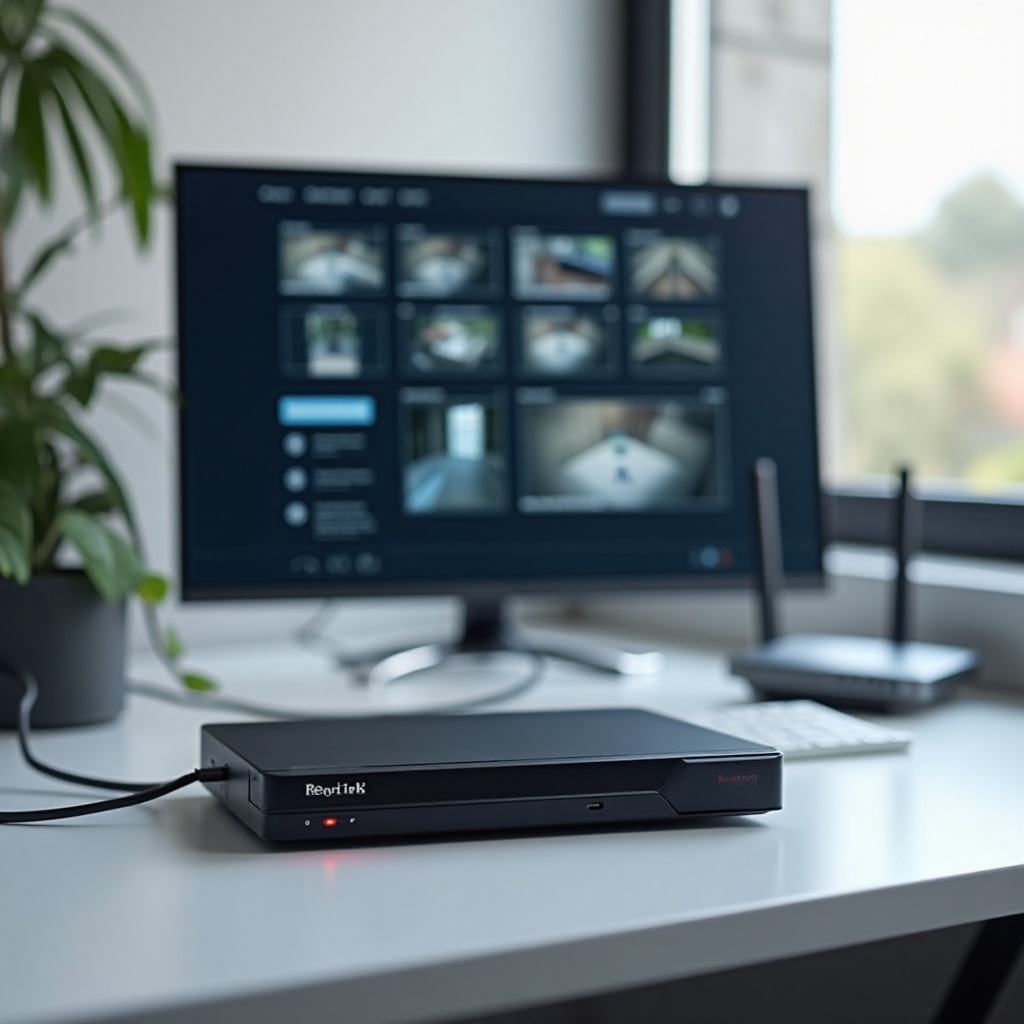
When a Blinking Red Light Is Normal on a Reolink DVR
Not every Reolink DVR blinking red light means an error. In some situations, blinking simply reflects normal activity. Knowing the difference helps you avoid unnecessary panic or support calls.
Look at the context: Did you just restart the DVR, perform an update, or change recording settings? The timing of the blinking often explains what is happening inside the device.
LED Behavior During Boot and System Restart
During startup, many Reolink DVRs will:
- Blink red while performing self-tests
- Initialize the hard drive
- Establish network connections
This phase can last from a few seconds to a couple of minutes. If the red light stops blinking and the DVR works normally after boot, that behavior is typically normal and does not require any action.
LED Activity During Firmware Updates and Maintenance Tasks
During firmware updates or internal maintenance tasks, the DVR may:
- Blink red to indicate heavy activity
- Reboot one or more times
- Pause recording briefly
If you manually started an update or scheduled maintenance, allow the process to complete. Interrupting it by pulling power can cause real problems that were not there before, including corrupted firmware or file systems.
High Recording Load and Scheduled Tasks in a Smart Home Setup
In a busy smart home setup:
- Multiple high-resolution cameras may record 24/7.
- Motion detection, alerts, and AI features may run in the background.
- Scheduled tasks like disk checks or log cleanups may run overnight.
Heavy load can trigger more frequent LED activity. As long as recordings are intact, the DVR is accessible, and there are no error messages, occasional red blinking under high load can be normal. From here, it helps to look at how your wider smart home network affects the DVR.
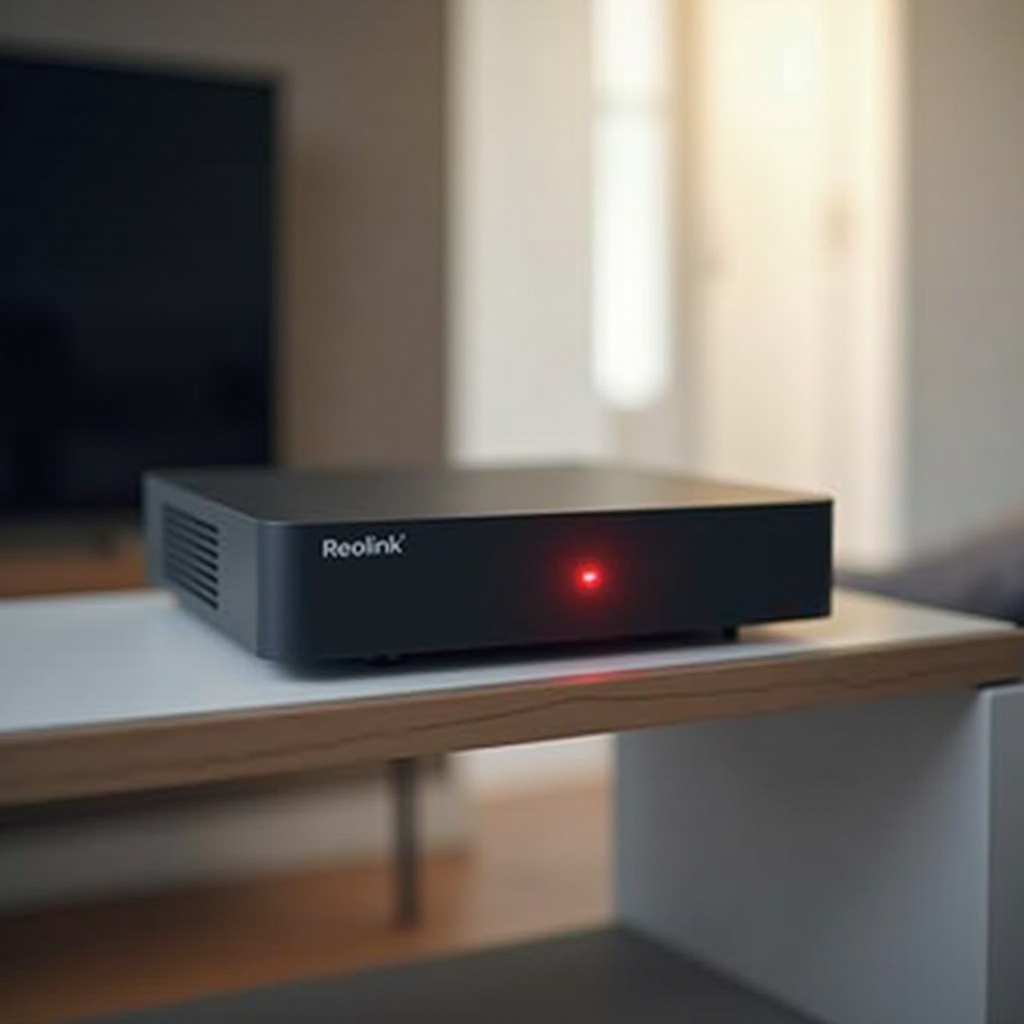
Smart Home Integration: How Network Setup Impacts DVR LED Status
Your Reolink DVR does not run in isolation; it shares your network with phones, TVs, smart speakers, and other IoT devices. The way you design this network can directly affect stability and may trigger or prevent a blinking red light.
A crowded, poorly configured network can cause packet loss, IP conflicts, and intermittent disconnects. All of these can lead to status LEDs flashing more often than they should and can make a healthy DVR look faulty.
Using Reolink DVR with Wi-Fi Routers, Mesh Systems, and VLANs
To keep your DVR stable in a smart home network:
- Connect the DVR to the router or main mesh node via Ethernet, not Wi-Fi.
- Avoid chaining too many cheap switches and extenders in series.
- If you use VLANs, keep the DVR and cameras on a dedicated security VLAN.
This setup reduces interference from other devices and makes it easier to manage traffic and troubleshoot issues. It also helps separate your security traffic from casual internet use.
Avoiding IP Conflicts with Other Smart Home Devices
IP conflicts can cause the DVR to drop off the network and trigger a red status LED. These conflicts happen when:
- Two devices share the same IP address on your network.
- The router’s DHCP pool overlaps with a static IP you set manually.
To prevent this:
- Reserve a DHCP address for the DVR in your router settings.
- Make sure no other device uses the same static IP.
- Keep a list of static IPs for cameras and key smart home devices.
Fewer IP conflicts mean fewer random disconnects and fewer LED warnings. Once the network design is stable, you can focus on long-term hardware health.
Optimizing Bandwidth for Security Cameras and Streaming
Security cameras stream a lot of data. Combine that with 4K streaming, gaming, and work-from-home video calls, and your network can choke. This can make the DVR appear offline or unstable even when the hardware is fine.
Consider the following adjustments:
- Lower camera bitrates or resolution slightly if the network is congested.
- Use Quality of Service (QoS) on the router to prioritize the DVR and cameras.
- Connect heavy-traffic devices via Ethernet instead of Wi-Fi where possible.
When the network runs smoothly, the Reolink DVR blinking red light becomes much less common. The next step is to keep the hardware itself healthy so problems do not resurface.
Long-Term Prevention: Keeping Your Reolink DVR Stable
Fixing a blinking red light once is good; preventing it from coming back is better. A few long-term habits and hardware choices can extend the life of your DVR and keep your smart home security system reliable.
Think of this as routine maintenance for your digital security system, similar to servicing a car. Small checks now can prevent bigger failures later.
Choosing Reliable Power, Surge Protection, and UPS Options
Stable power is crucial:
- Use the original Reolink power adapter, or a high-quality compatible one.
- Plug the DVR into a decent surge protector or, better, a UPS (uninterruptible power supply).
- Avoid overloading power strips with heaters, fridges, or other heavy appliances.
A UPS gives the DVR time to shut down cleanly during outages, which protects the hard drive and reduces the risk of file system corruption. It also smooths out minor voltage drops that might otherwise cause random reboots.
Best Practices for Ventilation, Placement, and Dust Management
Heat and dust shorten electronics lifespan. To protect your DVR:
- Place the DVR in a cool, ventilated area, not a sealed cabinet.
- Keep it away from direct sunlight and other heat sources.
- Clean dust from vents and fans every few months with compressed air.
Cool, clean hardware is less likely to crash, freeze, or trigger error lights. Good placement also makes it easier to inspect cables and ports during future troubleshooting.
Scheduling Regular Firmware, Storage, and Health Checks
Preventive checks take little time and avoid surprises:
- Check for firmware updates every few months on Reolink’s website.
- Review HDD status and recording logs periodically to catch early signs of failure.
- Verify that cameras are recording as expected, especially after power outages or router changes.
A simple monthly or quarterly checklist goes a long way toward preventing the Reolink DVR blinking red light from returning. If, after all of this, the problem still appears, it might be time to involve Reolink support.
When to Contact Reolink Support or Consider Replacement
Sometimes, despite your best efforts, the Reolink DVR blinking red light persists. At that point, you need to decide whether to seek official support or replace the unit. Recognizing the signs of deeper hardware failure will save you time and frustration.
If you have tried different cables, updated firmware, reset settings, and tested a known-good hard drive, yet the issue remains, it is reasonable to suspect a failing DVR.
Signs of Hardware Failure You Should Not Ignore
Watch for these red flags:
- DVR does not complete boot and stays stuck with a blinking red light.
- Strong burning or electrical smell from the unit.
- Visible damage on the board, power socket, or connectors.
- Frequent crashes or freezes even after resets and updates.
These symptoms often point to a failing mainboard or power circuit, which usually requires professional repair or replacement rather than simple DIY fixes.
Information to Gather Before Opening a Support Ticket
Before contacting Reolink support, prepare the following details:
- Device model and serial number.
- Firmware version you are running.
- Clear description of LED behavior and when it occurs.
- Screenshots or photos of error messages on the monitor or app.
- Steps you have already taken to troubleshoot.
This information helps support staff diagnose the issue faster and provide more accurate solutions. It also reduces the number of back-and-forth messages.
Repair vs Replacement Decisions for a Home Security DVR
If the DVR is under warranty, contact Reolink for repair or replacement options. If it is out of warranty:
- Compare the cost of a new unit with the cost of repair.
- Consider whether you want newer features, such as improved AI or higher resolution support.
- Factor in the age of your cameras and overall system.
Sometimes replacing an older DVR with a new model gives you better stability and features and can reduce future blinking red light headaches. Once you decide on repair or replacement, you can move forward with confidence.
Conclusion
A Reolink DVR blinking red light is your system’s way of asking for attention. It can indicate a network glitch, a failing hard drive, a power problem, or simply normal activity during boot or updates. By understanding LED patterns and following a structured troubleshooting process, you can quickly identify whether the issue is minor or serious.
Start with simple steps: power cycling, checking cables, and reviewing status in the Reolink app. Move to advanced checks only when needed: testing the hard drive, resetting the DVR, and updating firmware. Keep your network clean, power stable, and hardware well ventilated to prevent many issues before they start.
When the blinking red light persists despite your efforts, gather clear information and contact Reolink support or consider a replacement. With a bit of knowledge and proactive care, your DVR can stay reliable and your smart home security system can keep doing its job around the clock.
Frequently Asked Questions
Is a blinking red light on my Reolink DVR always a sign of a serious problem?
No. A Reolink DVR blinking red light is not always serious. It can be normal during boot, disk initialization, or firmware updates. It becomes a concern when the light continues to blink for a long time, the DVR fails to record, or you see error messages about the hard drive, network, or system status.
Will I lose my recordings if I reset or update my Reolink DVR to fix the red light issue?
A simple reboot or soft reset usually does not affect recordings. A factory reset generally keeps footage on the hard drive but clears settings. Firmware updates also usually leave recordings intact. However, disk formatting or replacing the HDD will erase data, so back up important footage before those steps when you can.
What should I do if my Reolink DVR keeps blinking red after replacing the hard drive and updating firmware?
If the Reolink DVR blinking red light continues after installing a new hard drive and fresh firmware, you may have a deeper hardware or power issue. Check the power adapter and outlet, ensure the DVR has good ventilation, and confirm network stability. If the problem persists, gather logs, photos, and system details, then contact Reolink support to check for mainboard or power circuit faults and discuss repair or replacement options.