
Powerbeats Will Not Charge? Complete Troubleshooting Guide for Beats Owners
Introduction
Powerbeats that will not charge can turn a workout or commute into a major headache. The LEDs stop responding, the battery stays at 1%, and nothing you try seems to work. Before you decide they are dead and start shopping for a new pair, you can try several reliable fixes at home.
This guide walks you through every practical step you can take when your Powerbeats will not charge. You will see how charging is supposed to work, how to spot the most common causes, and how to clean, reset, and revive your earphones. The tips apply to Powerbeats, Powerbeats Pro, and Powerbeats3 Wireless.
Follow the sections in order. Start with quick checks, then move on to deeper fixes. By the end, you will know whether you can fix your Powerbeats yourself or if you need help from Apple or Beats support.
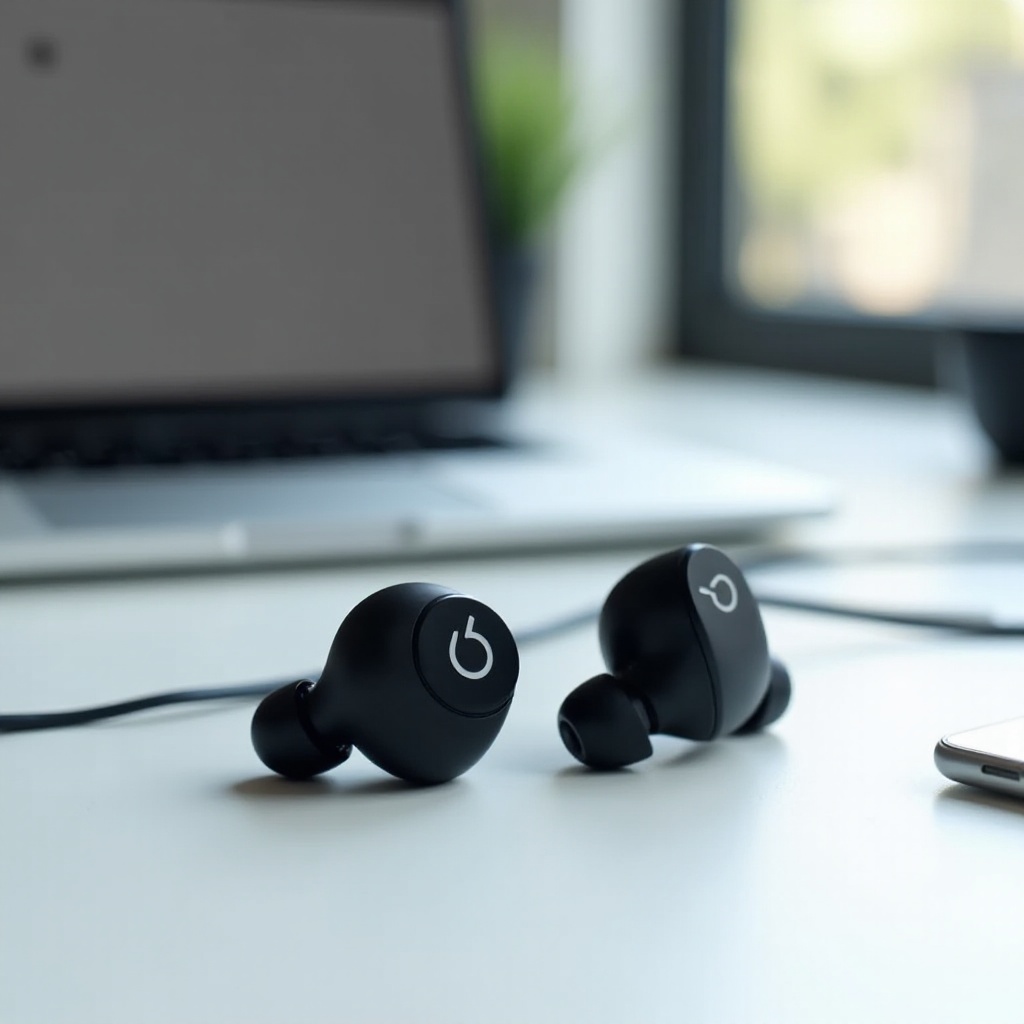
How Powerbeats Charging Is Supposed to Work
When you understand normal charging behavior, it becomes much easier to see what is wrong. Powerbeats models all use rechargeable lithium-ion batteries, but each model charges in a slightly different way. Knowing the expected charge time and LED patterns helps you avoid guessing and focus on real issues.
Powerbeats Models and Their Different Charging Setups
Powerbeats come in a few main versions, and each charges a bit differently:
- Powerbeats Pro: True wireless earbuds that sit in a charging case. The case charges with a Lightning cable or USB-C, depending on the version. The case then charges the earbuds through metal contacts in each slot.
- Powerbeats (wireless neckband): Earphones joined by a cable, with a charging port on the cable housing. They usually charge via Lightning, micro-USB, or USB-C, depending on the specific model.
- Powerbeats3 Wireless: A neckband-style model that charges through a micro-USB port on the cable.
All models rely on a secure physical connection between the cable and port, or between the earbuds and case. Any dirt, moisture, or damage on those contact points can stop charging.
Normal Charging Time and Battery Expectations
Under normal conditions with a good charger:
- A low battery should reach a useful level, around 40–50%, in about 30 minutes.
- A full charge often takes about 1–2 hours, depending on the model and charger.
- Fast-fuel features can give about an hour of playback from a short charge when everything works correctly.
If your Powerbeats take much longer than this or do not charge at all, something is getting in the way of normal charging.
What the Powerbeats LED Indicators Mean
LED lights give quick clues about battery and charging status:
- Solid white or green: charged or almost charged.
- Blinking or solid red or amber: low battery or charging.
- No light at all: can mean fully dead, not charging, or a deeper hardware fault.
If your Powerbeats will not charge and you see no LED, focus first on power, cables, and cleaning. Once you understand how they should behave, you can start with the easiest checks.
Quick Checks Before You Assume Your Powerbeats Are Dead
Before opening support tickets or planning a replacement, you should rule out the simple stuff. Many apparently dead Powerbeats start charging again after a basic power and connection check. These quick steps save time and often solve the problem without any technical work.
Confirm the Outlet, Cable, and Charger
Start with the basics:
- Plug another device into the same outlet or USB port to confirm it has power.
- Use a different, known-good cable with your Powerbeats or charging case.
- Try another power adapter or USB port, such as a laptop USB port or a quality wall charger.
Apple-certified or high-quality third-party USB chargers are best. Low-quality adapters can fail silently or deliver unstable power, which can lead to a Powerbeats will not charge situation even when the headphones are fine.
Check for Visible Damage on Ports and Connectors
Next, look closely at the hardware:
- Inspect the charging cable for frayed insulation, bent plugs, or kinks.
- Check the charging port on the Powerbeats or on the case for cracks, loose parts, or rust-like discoloration.
- On Powerbeats Pro, inspect the metal charging contacts in the case and on each earbud.
Any physical damage or corrosion can break the charging path and cause the problem where your Powerbeats will not charge no matter what cable you use.
Make Sure Your Powerbeats Are Not Already Fully Charged
Sometimes the issue is only confusion:
- Connect your Powerbeats to an iPhone, iPad, or Mac and check the on-screen battery level.
- On Powerbeats Pro, open the case near your device and look at the pop-up battery status.
- If the LEDs show a stable green or white light and your device shows near 100%, they may already be charged.
If you have verified power, cables, and visible damage, and your Powerbeats still will not charge, it is time to look at the most common underlying causes. Those causes often come down to dirt, bad accessories, or battery health.
Most Common Reasons Powerbeats Will Not Charge
Most charging failures come down to a few repeating issues. Identifying which one affects you will guide the right fix. Instead of guessing, you can match the symptoms you see to the most likely cause.
Dirt, Sweat, and Debris Blocking Charging Contacts
Powerbeats are popular for workouts, so they see sweat, dust, and skin oils. Over time, these build up on:
- The metal contacts in a Powerbeats Pro case and on the earbuds.
- The charging port of neckband models.
- The cable plug itself.
This grime acts like an insulating layer. The cable plugs in, but the power does not flow. If you use your Powerbeats at the gym or while running, blocked contacts are one of the first things to suspect when your Powerbeats will not charge.
Faulty or Incompatible Charging Accessories
Cables and chargers wear out. Common accessory problems include:
- Cheap cables that break inside the insulation.
- Chargers that output too little current or fluctuate.
- USB ports on old laptops that no longer provide stable power.
Even if a cable still charges your phone, it might fail with more sensitive devices. Using certified or branded accessories reduces this risk and helps you avoid repeating charging failures.
Overheating, Deep Discharge, and Battery Aging
Lithium-ion batteries have limits:
- Extreme heat can make the built-in safety circuits refuse to charge.
- Leaving your Powerbeats at 0% for weeks can cause deep discharge, where the battery falls below a safe voltage.
- After a few years of heavy use, batteries simply hold less charge or stop accepting charge at all.
If your Powerbeats are older or have been unused for a long time, battery health may be the main problem. In that case, cleaning and cable checks may not be enough, and you will need to focus on battery-specific fixes.
Fix #1 – Safely Clean the Powerbeats Charging Contacts
Since sweat and dirt are so common, cleaning the charging points is often the fastest fix. Done right, it can restore charging without any software tricks. Start here before you move on to resets or deep discharge methods.
Where to Find the Charging Contacts on Each Model
Locate the exact spots that need cleaning:
- Powerbeats Pro: Inside the case, at the bottom of each earbud slot, you will see small metal pads or pins. Matching pads sit on the underside of each earbud.
- Powerbeats (wireless neckband): The charging port sits on the cable housing. Look inside the port where the plug goes.
- Powerbeats3 Wireless: The micro-USB port on the cable is the main contact point.
These surfaces must be clean and dry for power to pass. If they are dirty or corroded, the headphones may appear dead even though the internal electronics still work.
Step-by-Step Cleaning Method Without Damaging Components
Use gentle tools and avoid liquid where possible:
- Power off your Powerbeats and unplug any cables.
- Use a soft, dry, lint-free cloth to wipe the outside surfaces.
- For small areas, use a dry cotton swab to clean the charging contacts and the inside of ports.
- For stubborn dirt, very lightly dampen the swab with 70% isopropyl alcohol, then wipe. Do not pour liquid into the case or ports.
- Let everything air-dry completely for at least 10–15 minutes.
- Place the earbuds back in the case or connect the cable again and test charging.
Avoid metal tools like paperclips. They can scratch contacts or cause short circuits. A careful cleaning is often enough to fix a Powerbeats will not charge issue, especially for users who work out often.
How Often You Should Clean Your Powerbeats
If you use Powerbeats for sports or in humid conditions, clean them:
- Briefly after sweaty workouts.
- Thoroughly once every one to two weeks.
Regular care helps prevent future charging problems and keeps audio quality stable. Once you have cleaned the contacts, the next step is to confirm that your accessories are not part of the problem.
Fix #2 – Test and Replace Charging Cables, Bricks, and Ports
If cleaning does not solve the issue, the next suspect is the charging accessories and ports. A weak cable or adapter can make it look like the headphones are failing when the problem sits elsewhere.
How to Tell if the Cable or Adapter Is the Problem
To check accessories:
- Use the same cable and charger with another device, such as an iPhone or Bluetooth speaker.
- If that device also refuses to charge or charges very slowly, replace the cable or adapter.
- Try at least two different cables and two different power sources with your Powerbeats.
- Gently move the cable while plugged in; if the LED flickers, the cable or port may be loose.
If your Powerbeats only charge in certain positions or only with one very specific cable, that is a strong sign of a failing cable or worn port rather than a bad battery.
Recommended Certified Chargers and Cables for Powerbeats
For stable charging, use:
- Original Apple or Beats cables when possible.
- Certified Lightning or USB-C cables from reputable brands.
- 5W–20W USB power adapters from well-known manufacturers.
Avoid very cheap, unbranded cables and high-wattage fast chargers that are not certified. They may provide unstable voltage that confuses your Powerbeats and shortens battery life.
When a Worn or Loose Port Needs Professional Service
If you see these signs:
- The plug feels very loose in the Powerbeats port.
- You need to bend or hold the cable at an angle to get a light.
- You see cracks, bent pins, or greenish corrosion.
The charging port itself likely needs repair or replacement. This is not a safe DIY fix. You should book service with Apple or an authorized provider. If the port looks fine and cables test well, software glitches are the next logical thing to check.
Fix #3 – Reset Your Powerbeats to Clear Charging Glitches
Hardware checks are not the only step. Software glitches can also make Powerbeats report the wrong battery level or refuse to charge. A reset often clears these issues and is simple to try after you know your charger and cable are good.
Resetting Powerbeats Pro Using the Charging Case
To reset Powerbeats Pro:
- Place both earbuds in the charging case and leave the lid open.
- Press and hold the system button on the case.
- Keep holding until the LED flashes red and white.
- Release the button. The earbuds are now reset.
- Re-pair them with your phone or tablet by opening the case near the device and following the on-screen steps.
After the reset, test charging again and watch the battery levels in your device’s Bluetooth settings to confirm that the readings look normal.
Resetting Powerbeats and Powerbeats3 Wireless
For neckband Powerbeats:
- Make sure they are not connected to any device.
- Press and hold the power button and volume down button at the same time.
- Hold them for about 10 seconds until the LED flashes.
- Release the buttons and then turn the earphones on again.
- Reconnect them to your phone or computer.
A reset can clear stuck firmware states that block proper charging or cause random disconnections, especially after updates or pairing changes.
When to Try a Second Reset and When to Stop
You can:
- Try a second reset if the first one fails or you made a mistake.
- Combine a reset with cleaning and cable checks for the best results.
If multiple resets do not change anything, the problem is likely hardware, not software. At that point, firmware updates and battery health become more important to check.
Fix #4 – Update Firmware and Check Device Settings
Even after a reset, outdated firmware or odd device settings can lead to charging confusion. Your Powerbeats rely on software updates to stay stable and compatible with new phones and operating systems. Keeping firmware current reduces bugs that can cause a Powerbeats will not charge issue.
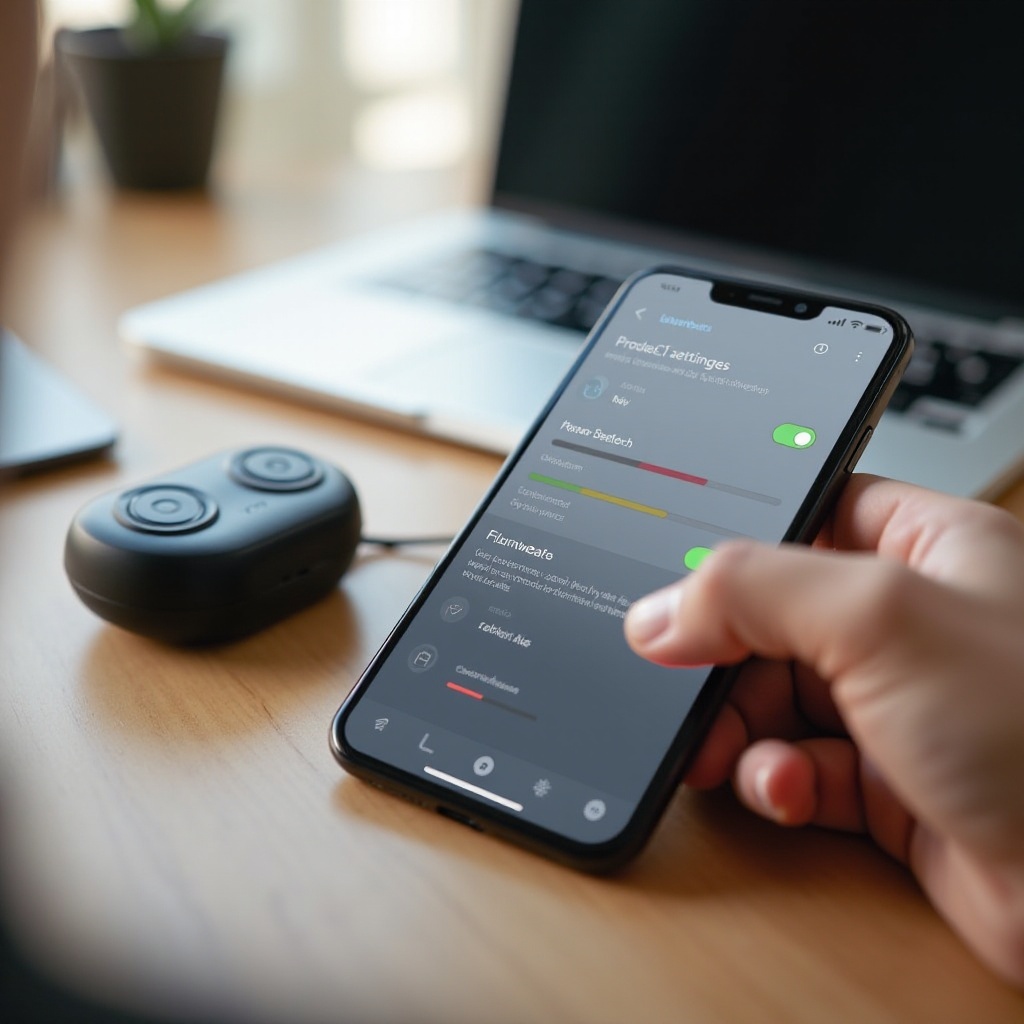
How to Check and Update Powerbeats Firmware on iOS
On an iPhone or iPad:
- Connect your Powerbeats or open your Powerbeats Pro case near the device.
- Go to Settings > Bluetooth.
- Tap the ‘i’ icon next to your Powerbeats.
- Check the firmware version listed.
Apple usually pushes firmware updates automatically when the earphones connect to a compatible device with an internet connection. To encourage an update:
- Keep your Powerbeats connected to the iOS device.
- Leave them charging and near the device for a while.
Using the Beats App on Android to Diagnose Issues
On Android:
- Install the official Beats app from the Google Play Store.
- Connect your Powerbeats to your Android phone.
- Open the Beats app to see battery levels, settings, and firmware information.
The app can guide you through updates and may show alerts if something is wrong with the battery or charging. It also helps confirm whether the phone is reading the battery correctly.
Fixing Misreported Battery Levels and ‘Ghost Charging’
Sometimes the battery meter is wrong even if charging works. To fix this:
- Fully charge your Powerbeats until the LEDs show full.
- Then use them until the battery runs low and they give a low-battery warning.
- Repeat this full cycle once or twice.
This process can help the firmware recalibrate the battery reading, reducing cases where your Powerbeats show 100% but turn off quickly. If calibration does not help, the battery itself may have been damaged by deep discharge.
Fix #5 – Revive Powerbeats After Long-Term Storage or Deep Discharge
If your Powerbeats will not charge after sitting unused for weeks or months, they may have entered deep discharge. In this state, the battery fell so low that normal charging no longer starts. You can sometimes bring them back with a gentle slow-charge method.
What Deep Discharge Does to Headphone Batteries
Lithium-ion batteries have a safe voltage range. When they stay at 0% for too long:
- The voltage drops below a safety threshold.
- The internal protection circuit may block charging to prevent damage.
- Capacity can permanently shrink, so even a ‘fixed’ battery may not last as long.
Deep discharge is one of the most common reasons older or stored Powerbeats refuse to wake up. It can turn a working pair into a Powerbeats will not charge complaint after a period of storage.
Slow-Charge Method to Bring a ‘Dead’ Pair Back to Life
You can try a gentle revival:
- Plug your Powerbeats or charging case into a low-power, stable USB source, such as a computer USB port.
- Do not use fast-charging bricks for this step.
- Leave them connected for at least 30–60 minutes, even if no LED lights show.
- After an hour, check for any LED activity or battery reading on your phone.
- If you see signs of life, keep charging until they reach a normal level.
Sometimes, it takes a while for the internal circuits to accept that it is safe to charge again. Patience here can bring a pair back that looked completely dead.
Signs the Battery Is Permanently Damaged
Unfortunately, not every battery can be saved. Signs of permanent damage include:
- No LED activity after an hour or more on a known-good charger.
- Powerbeats turn on but shut off again within minutes, even after long charging.
- Visible swelling, warping, or heat when charging (stop immediately if you notice this).
In these cases, you likely need a battery replacement or a new pair of headphones. If you suspect damage like this, contact support before trying to charge them again.
Model-Specific Tips: Powerbeats, Powerbeats Pro, and Powerbeats3
While the general fixes help most users, some problems affect specific Powerbeats models more than others. Adjust your approach based on your exact model so you do not miss a known weak point.
Powerbeats Pro – Case Charges but Earbuds Do Not
For Powerbeats Pro, a common pattern is:
- The case charges fine.
- One or both earbuds stay at 0% or charge unevenly.
To fix this:
- Clean the metal contacts in the case and on each earbud.
- Make sure the ear tips are not preventing the buds from sitting fully in the case.
- Place each earbud in the case and press down gently to confirm it snaps into place.
- Close the lid and wait a few minutes, then check battery levels again.
If one earbud still never charges, its internal battery or contacts may be faulty and may need service.
Powerbeats (Wireless Neckband) – LED Patterns and Cable Issues
For the neckband Powerbeats:
- Watch the LED when you plug in the cable.
- A quick blink followed by nothing can point to a bad cable or port.
- Solid red that never changes may mean the battery cannot move into normal charge mode.
Try multiple cables and chargers. If the LED behaves the same every time with good accessories, the battery or port may be failing and will likely need professional attention.
Powerbeats3 – Aging Batteries and When Replacement Makes Sense
Powerbeats3 are older for many users. Common signs of age include:
- The battery drops from 50% to 0% very quickly.
- They only hold a charge for a short workout.
- They take much longer than before to reach full charge.
If you have used them heavily for several years, this is normal battery wear. In many cases, replacing them with a newer model is more practical than paying for out-of-warranty battery service, especially if you already see other signs of wear.
When to Contact Apple or Beats Support
If you have cleaned, tested cables, reset, updated, and tried slow charging with no success, you likely face a hardware issue. Support from Apple or Beats will be the most reliable next step, and they can confirm whether repair is worth it.
How to Check Warranty and AppleCare+ Coverage
You can check coverage by:
- Finding the serial number for your Powerbeats or case.
- Visiting Apple’s official ‘Check Coverage’ page.
- Entering the serial number and following the instructions.
If your Powerbeats are still under the standard warranty or covered by AppleCare+, you may be eligible for free repair or replacement when your Powerbeats will not charge despite basic fixes.
What Support Can Repair or Replace for Powerbeats
Apple or authorized service providers can:
- Diagnose charging and battery issues.
- Replace faulty batteries, cases, or earbuds.
- Swap your unit with a replacement device if repair is not feasible.
The exact options depend on the model, damage, and warranty status. Always ask what is covered before you agree to anything.
Typical Costs and Turnaround for Out-of-Warranty Service
Out of warranty, you should expect:
- A service fee that can be a significant part of the cost of a new pair.
- Replacement units rather than direct repair in many cases.
- A turnaround time from a few days to a couple of weeks, depending on location and parts availability.
Ask for a cost estimate before you approve any paid service so you can compare it with buying new headphones. If you decide to keep your current pair, adopt better charging and storage habits to avoid future problems.
Preventing Future Powerbeats Charging Problems
Once you get your Powerbeats charging again, good habits can prevent the same issue from returning. A bit of care goes a long way with small batteries and charging ports and helps you avoid another Powerbeats will not charge situation.
Best Daily Charging and Storage Habits
To keep your Powerbeats healthy:
- Charge them before they reach 0% whenever possible.
- Avoid leaving them plugged in for days at a time once they are full.
- Store them in their case or a safe pouch when not in use.
- If you will not use them for weeks, store them around 40–60% charge and top them up every month.
These habits reduce stress on the battery and extend its useful life.
Protecting Powerbeats From Sweat, Moisture, and Heat
Because Powerbeats are workout-friendly, you should:
- Wipe them down with a dry cloth after intense sessions.
- Let them dry fully before placing them in the case or plugging in a cable.
- Never leave them charging in a hot car or direct sunlight.
- Keep them away from steam, such as in bathrooms during hot showers.
Moisture and heat accelerate corrosion and can damage both batteries and ports, which leads straight back to charging issues.
How to Extend Battery Lifespan Across All Your Headphones
General battery care tips include:
- Avoid full discharges; keep the battery between about 20% and 80% when possible.
- Do not use cheap, unstable chargers.
- Update firmware so battery management software stays current.
These practices help all your wireless headphones, not only your Powerbeats, and reduce the chance you will see the same problem in the future.
Conclusion
When your Powerbeats will not charge, it is frustrating, but not always a dead end. By checking power sources, cleaning contacts, testing cables, resetting, and updating firmware, you can resolve many issues without a trip to the store. For units left unused for a long time, a careful slow-charge attempt can sometimes bring the battery back to life.
If none of these steps restore charging, the problem likely lies in a worn battery, damaged port, or other internal hardware fault. At that point, contacting Apple or Beats support will tell you whether repair or replacement makes more sense. Combine these troubleshooting steps with good charging and storage habits, and your Powerbeats are far more likely to stay ready for every workout, call, and playlist.
Frequently Asked Questions
Why are my Powerbeats not charging but the light is on?
If the light stays on but the battery does not increase, the LED only shows that power reaches the device, not that the battery accepts charge. Try a different cable and charger, clean the contacts, and reset your Powerbeats. If the battery percentage on your phone never changes, the internal battery or charging circuit may be failing.
How long should Powerbeats take to charge from 0% to 100%?
Most Powerbeats models reach a full charge in about 1 to 2 hours with a proper charger, and you should see a useful level after about 30 minutes. If charging takes much longer, stops at a low percentage, or your Powerbeats will not charge at all, check your cable, adapter, and ports, and clean the contacts before suspecting a faulty battery.
Can I replace the battery in my Powerbeats if they won’t hold a charge?
Powerbeats batteries are not designed for user replacement, and opening the case or earbuds can damage the device and void support options. If your battery no longer holds a charge after you clean, reset, and update, contact Apple or an authorized service provider. They can perform a battery service or offer a replacement unit, or help you decide whether a new pair is more cost-effective.