
How to Change Apple Mouse Batteries
Having your Apple mouse fail due to battery issues can be a frustrating experience, but fear not! By following a quick battery change routine, you can restore your device’s performance effectively. This guide walks you through identifying your mouse model, preparing for battery replacement, and providing a step-by-step process to keep your device running smoothly.
Introduction
Changing the batteries in your Apple mouse doesn’t have to be a complex task. This straightforward guide will help you efficiently swap out batteries and extend your mouse’s lifespan. We’ll address the needs of both the Magic Mouse and Magic Mouse 2, ensuring that you can keep your workflow uninterrupted no matter the model.
Identifying Your Apple Mouse Model
Before beginning, it’s crucial to ascertain whether you own a Magic Mouse or Magic Mouse 2, as the replacement processes vary.
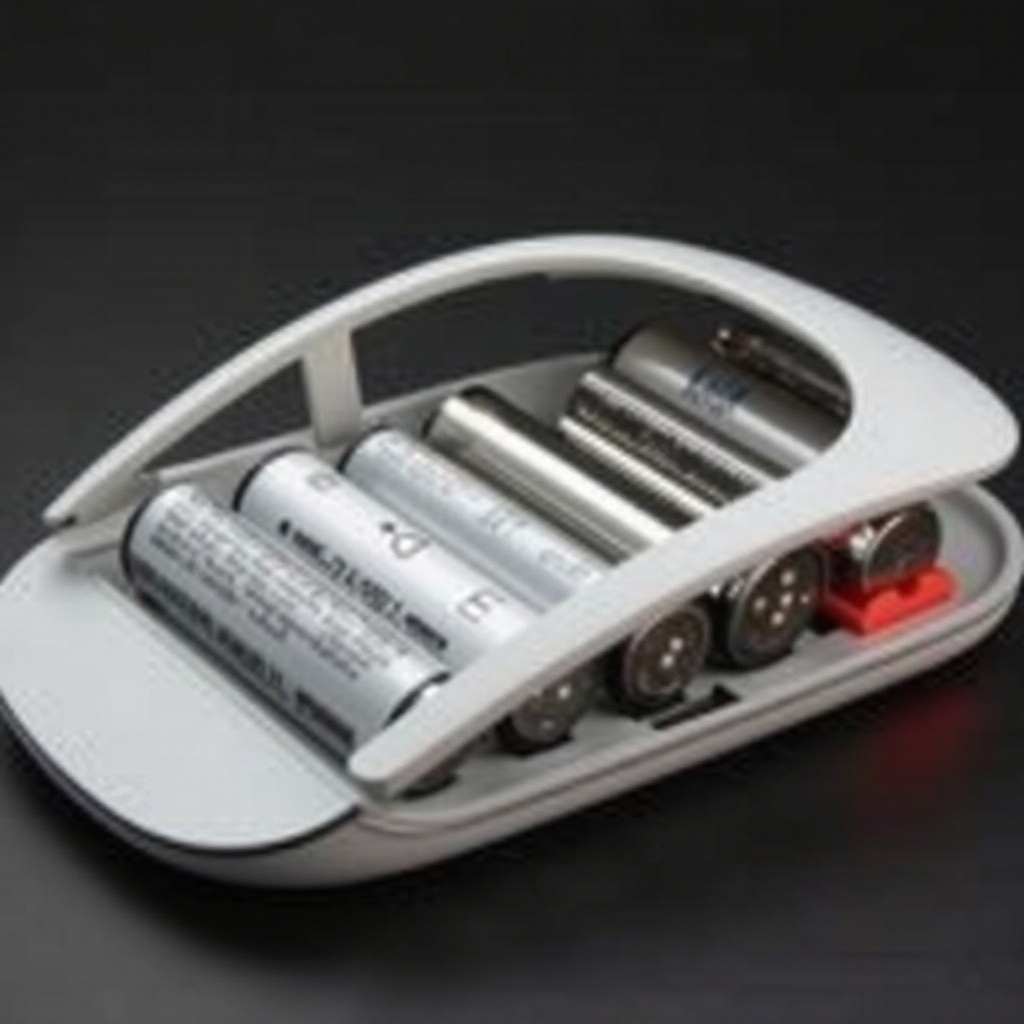
- Magic Mouse: This model uses standard AA batteries and allows access via a removable cover.
- Magic Mouse 2: Incorporating a rechargeable setup, this model doesn’t include a removable battery cover, charging instead through a lightning cable.
Differentiating your model ensures you prepare adequately with the necessary materials and tools before progressing to the next steps.
Preparing for Battery Replacement
Now that you’ve identified your model, let’s prepare the materials and setup you‘ll need for a successful battery change:
- For Magic Mouse:
- Two AA batteries (alkaline or rechargeable are ideal)
- A flat surface for stability
-
A cloth to avoid surface scratches
-
For Magic Mouse 2:
- A lightning cable
- A nearby USB power source
- A cleaning cloth
By organizing your workspace and tools in advance, you can perform the battery change smoothly without any hitches.
Step-by-Step Battery Replacement for Magic Mouse
Replacing your Magic Mouse’s batteries is straightforward when broken down into steps:
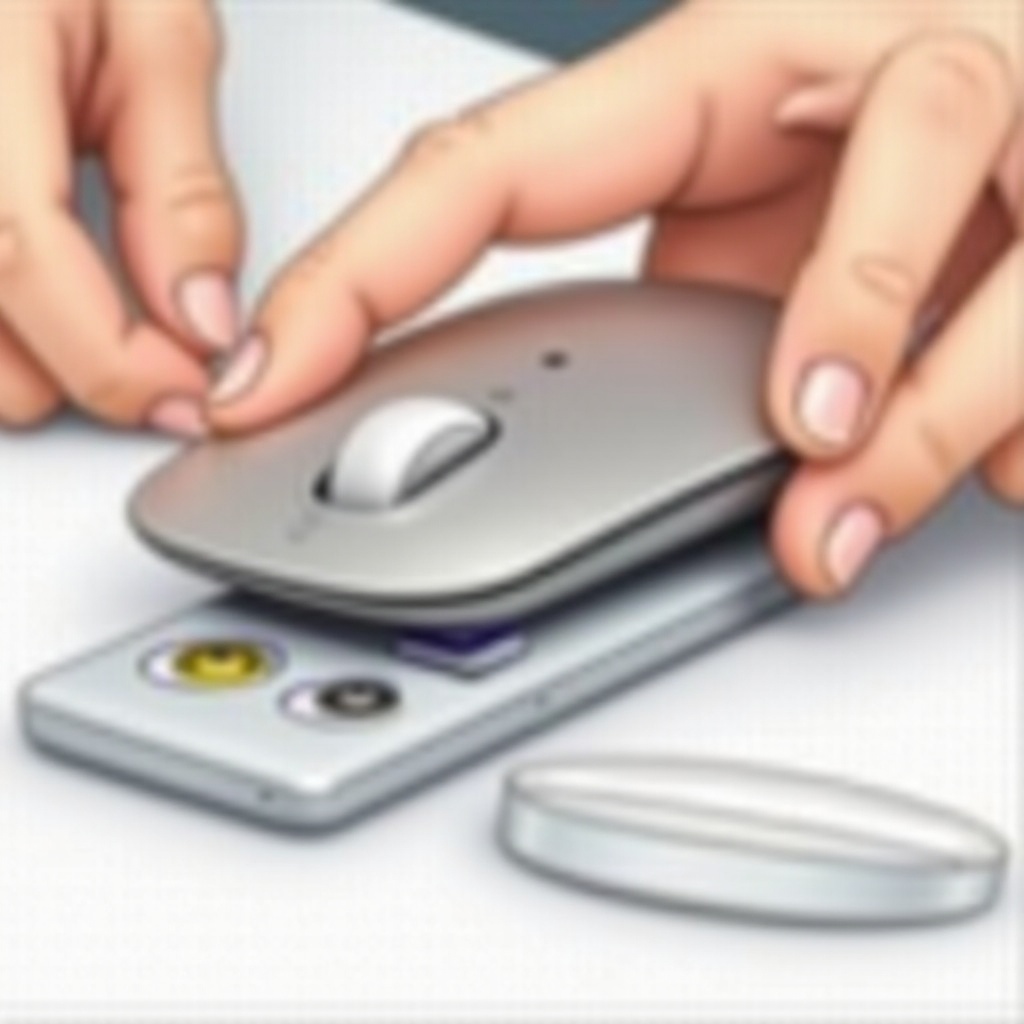
- Remove the Back Cover:
-
Flip the mouse over and press the small latch to release the cover gently.
-
Replace the Batteries:
- Carefully remove the existing batteries.
-
Insert two new AA batteries, ensuring proper alignment with the marked positive and negative ends.
-
Reattach the Cover Securely:
- Snap the cover back into place, ensuring a snug fit.
These steps ensure your Magic Mouse powers up and performs optimally with fresh batteries.
Charging Process for Magic Mouse 2
For those using Magic Mouse 2, proper charging ensures performance remains top-notch:
- Connect the Lightning Cable:
-
Insert one end of the cable into the mouse’s port and connect the other to a USB power source.
-
Optimal Charging Practices:
- Let the device charge fully prior to use, typically over two hours.
-
Regularly charge it to maintain battery health.
-
Troubleshooting Charging Issues:
- If charging issues appear, check connections are secure.
- Try alternate power sources if problems persist.
Following these protocols minimizes downtime and ensures your device is ready when needed.

Tips for Extending Battery Life
With your device now operational, consider these tips to maximize battery longevity:
- Effective Battery Management:
- Turn off the mouse during inactivity.
-
Use high-quality or rechargeable batteries.
-
Energy-Saving Tips:
- Adjust your device’s settings to minimize power usage.
- Use a compatible surface, such as a mouse pad, to enhance the sensor’s efficiency.
Implementing these recommendations reduces the frequency of battery replacements, prolonging the device’s life.
Troubleshooting Common Battery Issues
Even with new batteries, issues can arise. Here’s how to diagnose and fix common problems:
- Diagnosing Battery Problems:
-
If unresponsive, check battery alignment and ensure no compartment obstructions.
-
Quick Fixes and Solutions:
- Test different batteries if issues persist.
- Reset the connection for Magic Mouse 2 by toggling Bluetooth settings.
These handy fixes should resolve most common issues, ensuring your mouse maintains smooth operations.
Conclusion
Switching out batteries or charging your Apple mouse needn’t be a hassle. By adhering to these outlined processes, you can keep your device ready for work or leisure. Regular upkeep ensures long-term functionality and keeps you connected without delay.
Frequently Asked Questions
How often should I replace the batteries in my Magic Mouse?
It is recommended to replace them every 6–8 weeks, depending on usage intensity.
Can I use rechargeable batteries in my Magic Mouse?
Yes, utilizing rechargeable AA batteries is sustainable and performs well.
What should I do if my Magic Mouse won’t charge?
Ensure proper cable connections, and try a different USB port or cable if necessary.