
How to Fix Your Broken Acer Monitor: A Comprehensive Guide
Introduction
Acer monitors are renowned for their quality and reliability, yet they can occasionally experience technical issues. Problems such as distorted images or screens that fail to display can seriously affect productivity or leisure activities. This guide provides detailed troubleshooting tips to help you fix a broken Acer monitor. Whether the issue is common like flickering or more complex such as a complete blackout, these solutions aim to assist you in restoring your monitor to optimal performance.
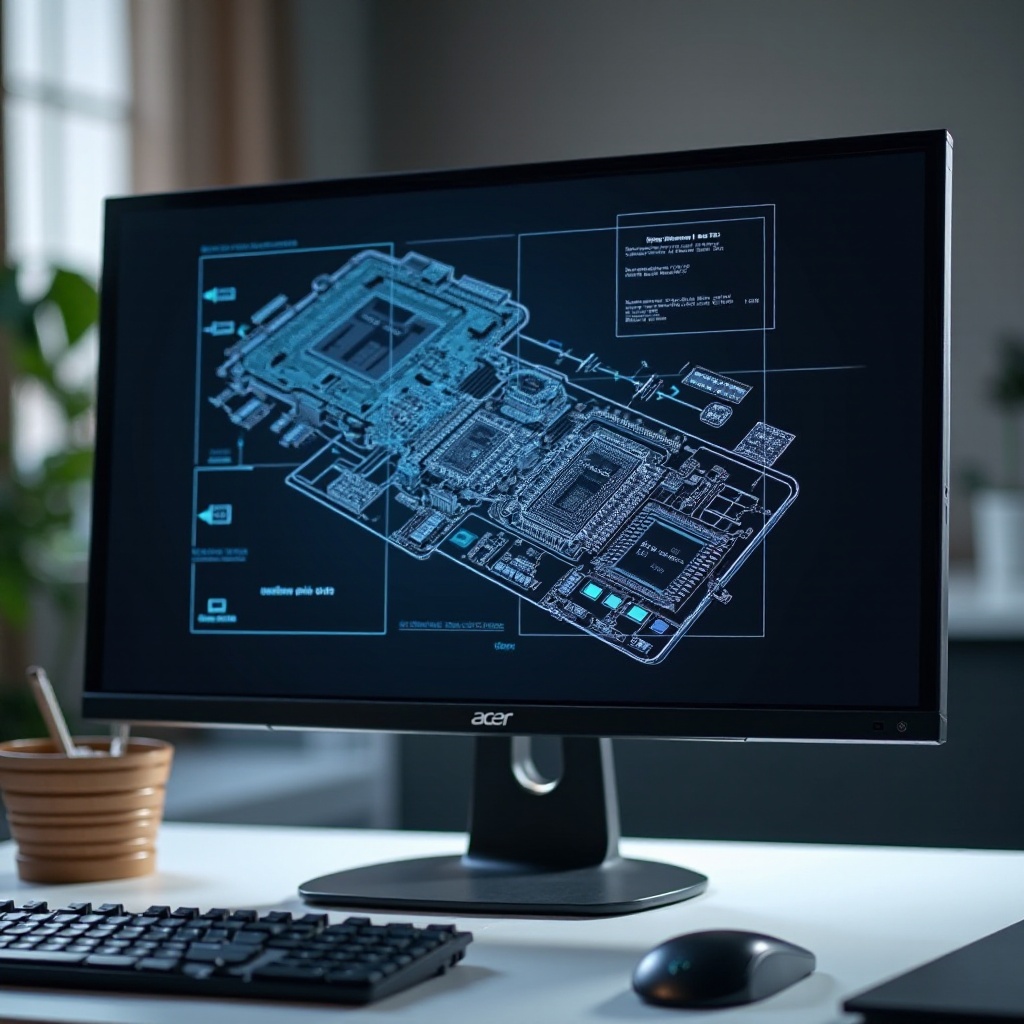
Identifying the Problem
Correctly identifying the issue with your Acer monitor is the first step to finding an effective solution. Common problems include:
- Distorted or Flickering Display:
- Lines or waves distort the display.
- Colors appear off or too dim.
- Monitor Turning Off Randomly:
- Monitor shuts down unexpectedly.
- Difficulty keeping the monitor on.
- No Display or Black Screen:
- Screen stays black when turned on.
- Power light is on yet no display shows.
Knowing the specific problem will lead you to the right troubleshooting steps.
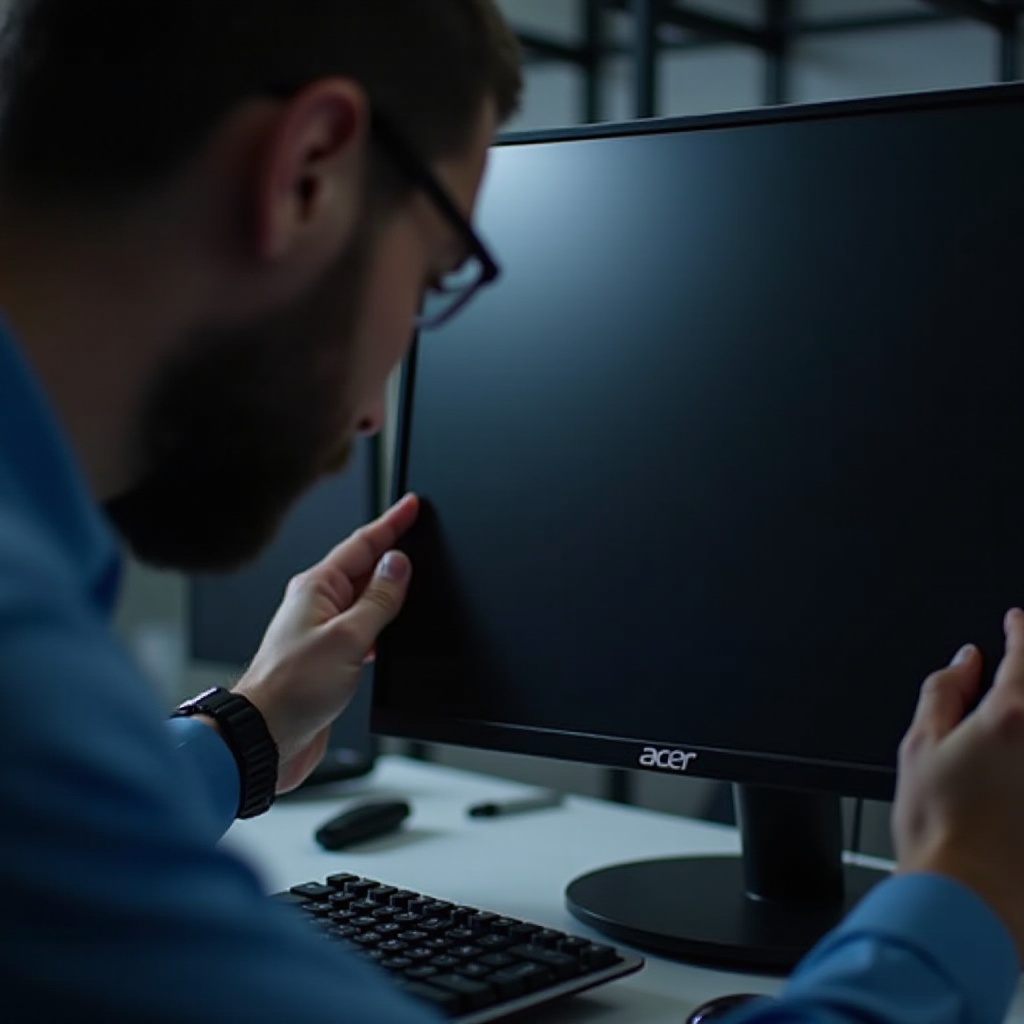
Basic Troubleshooting Steps
With the problem identified, begin with some basic troubleshooting steps. These initial checks can often resolve minor issues quickly:
- Check Power Connections:
- Confirm the monitor is plugged into a functioning power outlet.
- Inspect the power cable and adapter for any damage.
- Inspect Cables and Ports:
- Check the connections between the monitor and your computer.
- Try replacing cables if they seem worn or damaged.
- Test with a Different Device:
- Connect the monitor to another device to determine if the issue persists.
- This helps to isolate whether the problem is with the monitor or your device.
If these steps do not resolve the issue, move on to more advanced troubleshooting.
Advanced Troubleshooting Techniques
When basic troubleshooting doesn’t solve the issue, it’s time to delve into some advanced techniques:
- Updating Graphics Drivers:
- Navigate to your computer’s device manager.
- Locate your graphics card, right-click, and select ‘Update Driver.
- Exploring Monitor Settings:
- Use the on-screen display (OSD) menu to access monitor settings.
- Consider resetting to factory defaults or adjusting settings like brightness and contrast.
- Factory Resetting Your Monitor:
- Consult the monitor’s manual for instructions on performing a factory reset.
- Remember, this will erase all personal settings.
After trying these steps, you can evaluate whether repair or replacement is needed.
Repair or Replace: Making the Right Call
If advanced solutions fail, you might need to decide between repairing or replacing the monitor. Factors to consider include:
- Signs Your Monitor Might Be Beyond Repair:
- Persistent screen issues that resist troubleshooting.
- Visible physical damage, such as cracks.
- Cost Analysis: Repair vs. Replacement:
- Compare repair quotes against the price of a new monitor.
- Consider the benefits of modern monitors, such as advanced features and warranties.
- Environmental and Warranty Considerations:
- Consider the environmental impact of disposing of electronics.
- Check if your monitor is under warranty for free repair services.
Proper evaluation will guide you to the most cost-effective and logical choice.
Choosing the Right Repair Services
If professional repair is necessary, select a trusted service for reliable results:
- Finding Reliable Repair Services:
- Seek authorized Acer service centers.
- Research reviews and customer feedback for assurance.
- Types of Repairs Commonly Performed:
- Screen and display repairs.
- Circuit board or electronic component repairs.
Reliable service ensures a thorough resolution of complex issues, restoring your monitor to good working order.
Preventive Maintenance Tips
To avoid future problems with your Acer monitor and extend its lifespan, follow these maintenance tips:
- Proper Shutdown Processes:
- Always shut down your computer properly before turning off the monitor.
- Regular Cleaning and Dusting:
- Use a soft, dry cloth to regularly clean the screen and the surrounding area.
- Keep the environment dust-free to prevent clogging and overheating.
Regular maintenance can significantly enhance the durability and performance of your monitor.
Conclusion
Addressing issues with a broken Acer monitor need not be a daunting task. By understanding how to identify problems, following strategic troubleshooting steps, and knowing when to either repair or replace, you maintain productivity and enjoyment with minimal downtime. Moreover, adopting preventive measures can further safeguard against potential problems, ensuring your Acer monitor remains a reliable component of your digital workspace.
Frequently Asked Questions
How do I know if my Acer monitor is beyond repair?
If problems persist after troubleshooting and there is physical damage, replacement might be necessary.
What precautions should I take when inspecting my monitor?
Unplug the monitor and avoid applying pressure to the screen; handle cables gently to prevent damage.
Are DIY repairs safe for all Acer monitor issues?
DIY repairs are suitable for minor issues, but major problems should be handled by professionals to ensure safety and efficacy.