
Does the Chromecast Work with iPhone? A Comprehensive Guide
Introduction
Dive into the world of streaming with Chromecast, Google’s compact device that transforms your viewing experience by projecting content from your small screen to the TV effortlessly. Explore how it pairs with the versatile iPhone, enabling a seamless media transition.
Understanding Chromecast
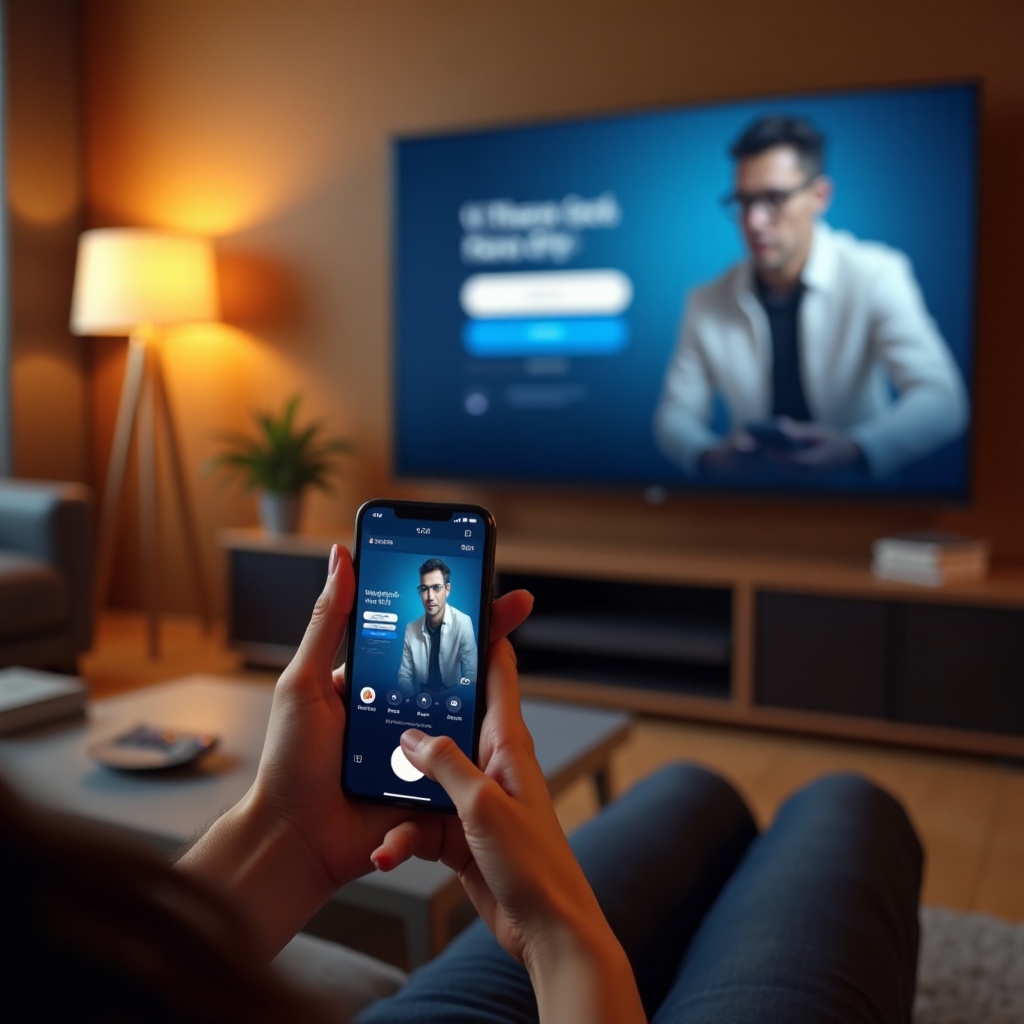
Chromecast, a digital media player line by Google, simplifies the way people stream digital content on TVs. The device connects via HDMI and allows users to control video playback from their smartphones and computers. The standout features include compatibility with major streaming services, multi-platform access, and its budget-friendly nature.
The strength of Chromecast lies in its ease of use and the breadth of devices with which it interfaces, notably including iPhones, facilitating a bridge between various service providers and your TV screen, ensuring a continual place in the streaming ecosystem.
Compatibility: Chromecast and iPhone
Confirming compatibility is crucial for prospective users. Chromecast syncs smoothly with iPhones, particularly models running iOS 12.0 or newer, making the Google Home app a vital component for this operation. Users can stream easily through apps like Netflix, YouTube, and others that support casting functionality.
Staying connected requires ensuring both devices are on the same Wi-Fi network. This straightforward alignment sets the stage for a hassle-free viewing journey, heightened by user-friendly apps facilitating a seamless multimedia experience.
Setting Up Chromecast with Your iPhone
Embarking on this streamlined media journey begins with setting up Chromecast with your iPhone through a few simple steps:
1. Check Hardware Requirements: Acquire a Chromecast, an iPhone with internet access, and a suitable TV.
2. Connect Chromecast: Insert Chromecast into the TV’s HDMI input and provide power using the appropriate adapter.
3. Download Google Home App: Install and open Google Home from the App Store.
4. Connect to Wi-Fi: Ensure the iPhone uses the same Wi-Fi network as Chromecast.
5. Setup via App: Follow prompts on the Google Home app to sync with Chromecast.
Establishing this connection empowers users to link streaming services such as Spotify or Netflix, easily casting media from the iPhone to the larger TV screen for an immersive viewing section.
Streaming with Chromecast on iPhone
After setup, explore diverse content options. Casting features on apps like Hulu, Disney+, and HBO Max allow media projection from your iPhone directly to the TV effortlessly.
To enhance your streaming experience:
– Stable Wi-Fi Connectivity: Secure a robust signal to minimize disruptions.
– Regular App Updates: Keep all streaming apps up to date to maintain smooth functioning.
– High-Quality Streams: Select HD or UHD options for superior viewing quality.
This process unlocks potential media content, enriching the entertainment value across all your devices.
Troubleshooting Common Issues
Even with smooth setup, technical hiccups might occur. Here’s how to tackle common problems efficiently:
– Connectivity Issues: Verify your Wi-Fi connection’s status and ensure it is correctly connected on all devices.
– Performance Lags: Restart both your Chromecast and router to resolve buffering or latency issues. Clearing the cache can also prevent slowdowns.
– App Crashes: Uninstall and reinstall any app that crashes to address malfunctioning software setups.
These solutions act as valuable pointers toward consistent, trouble-free streaming while maintaining ease of operation.
Advanced Features and Tips
Chromecast offers advanced functionalities enhancing its value. Users can integrate additional services via the Google Home app, cast Chrome browser tabs, or tap into Google Assistant for voice-controlled operations.
Optimizing device setup includes:
– Router Adjustment: Place routers strategically to prevent interference, ensuring seamless connectivity.
– Group Casting Experience: Engage multiple Chromecasts for synchronized content across different screens.
These elevated features enable users to fully capitalize on the Chromecast’s capabilities, amplifying the overall home entertainment system.
Alternatives to Chromecast for iPhone Users
While Chromecast provides robust streaming solutions, exploring alternatives can lead to interesting options. Competitors such as Apple TV and Amazon Fire Stick offer diverse features suited to different preferences and needs.
- Apple TV: Seamlessly integrates into Apple’s ecosystem, providing a refined user experience with exclusive access to Apple’s services.
- Amazon Fire Stick: Known for its user-friendly interface and extensive app selections, delivering a versatile media consumption experience.
Whether one chooses Chromecast or its alternatives, each device’s specific strengths highlight its ability to transform simple screen streaming into a feature-rich viewing experience across any ecosystem.
Conclusion
Chromecast effectively collaborates with iPhone devices, streamlining the process of enjoying digital content. With proper setup, strategic app use, and access to troubleshooting resources, users can enjoy a fluid and enriched digital viewing experience.
Frequently Asked Questions
Can I use Chromecast with any iPhone model?
Yes, most iPhone models running iOS 12.0 or later are compatible with Chromecast.
What should I do if my iPhone can’t find my Chromecast?
Ensure both devices are on the same Wi-Fi network and try restarting both the Chromecast and the Wi-Fi router.
Are there any subscription fees for using Chromecast with an iPhone?
Chromecast itself is a one-time purchase, but subscription fees may apply for specific streaming services you wish to use.