
How to Change Your iPhone Region: A Comprehensive Guide
Introduction
Changing your iPhone’s region is an invaluable tool to access apps and services specific to different geographical locations. This can be particularly useful when moving to a new country or if you’re seeking content that is restricted in your current area. Understanding the intricacies of your iPhone’s region settings can enhance your device’s potential.
In this guide, you will learn the precise steps to change your iPhone region, and we’ll dive into what will change on your device. Furthermore, we will address frequent issues and provide tips to ensure a smooth transition to your new region settings.
Understanding iPhone Region Settings
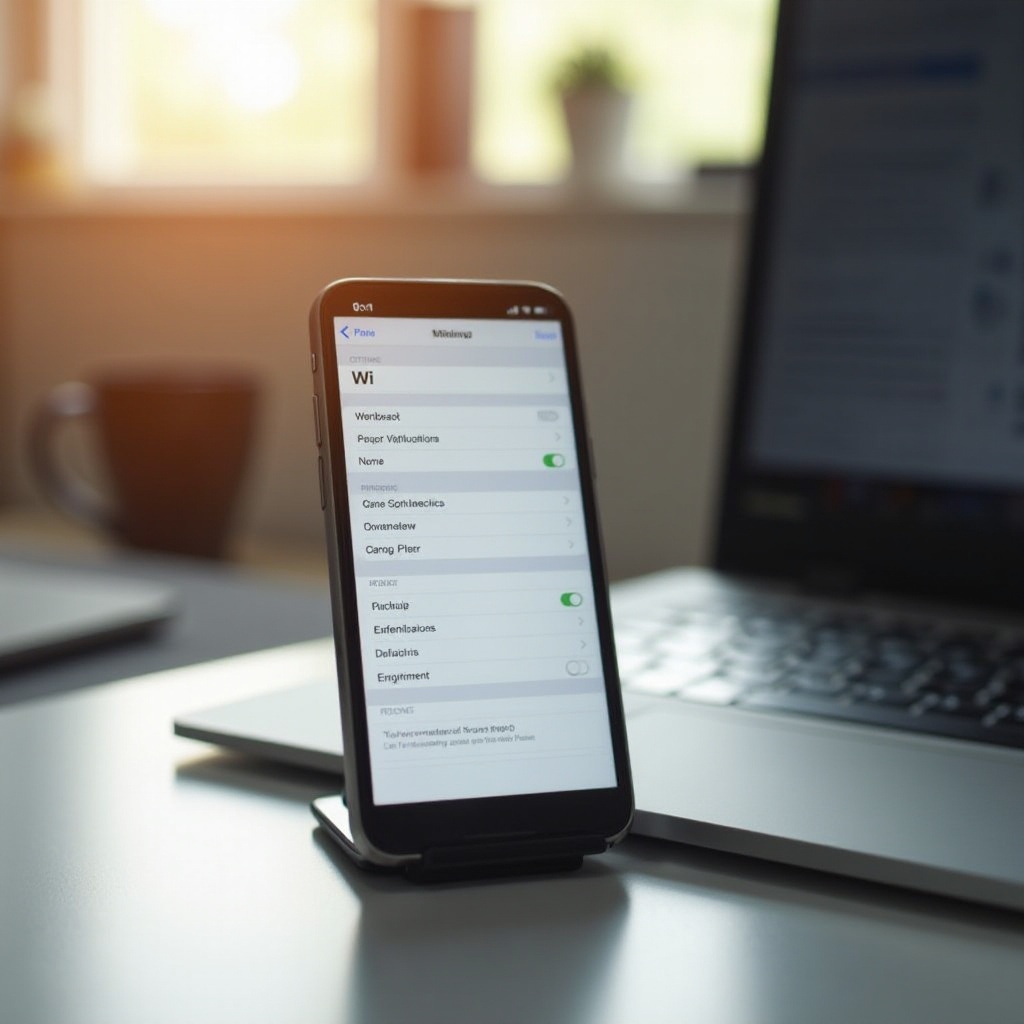
Before diving into the process, it is essential to understand the role of region settings. These settings determine access to localized content on your iPhone. They influence the apps available on your App Store, the default language, currency display, and other regional preferences. For example, changing your region to a different country might allow you access to region-specific apps and media content.
Region settings impact more than just your apps; they also affect device functionalities such as Siri’s language and other system updates. With this understanding in place, you are better equipped to proceed with changing your iPhone’s region.
Step-by-Step Guide to Changing Your iPhone Region
Follow these simple steps to adjust your iPhone region:
-
Open Settings: Locate and open the Settings app on your home screen.
-
Navigate to General: Scroll down and select ‘General’ to access more settings.
-
Access Language & Region: Find and tap on ‘Language & Region.
-
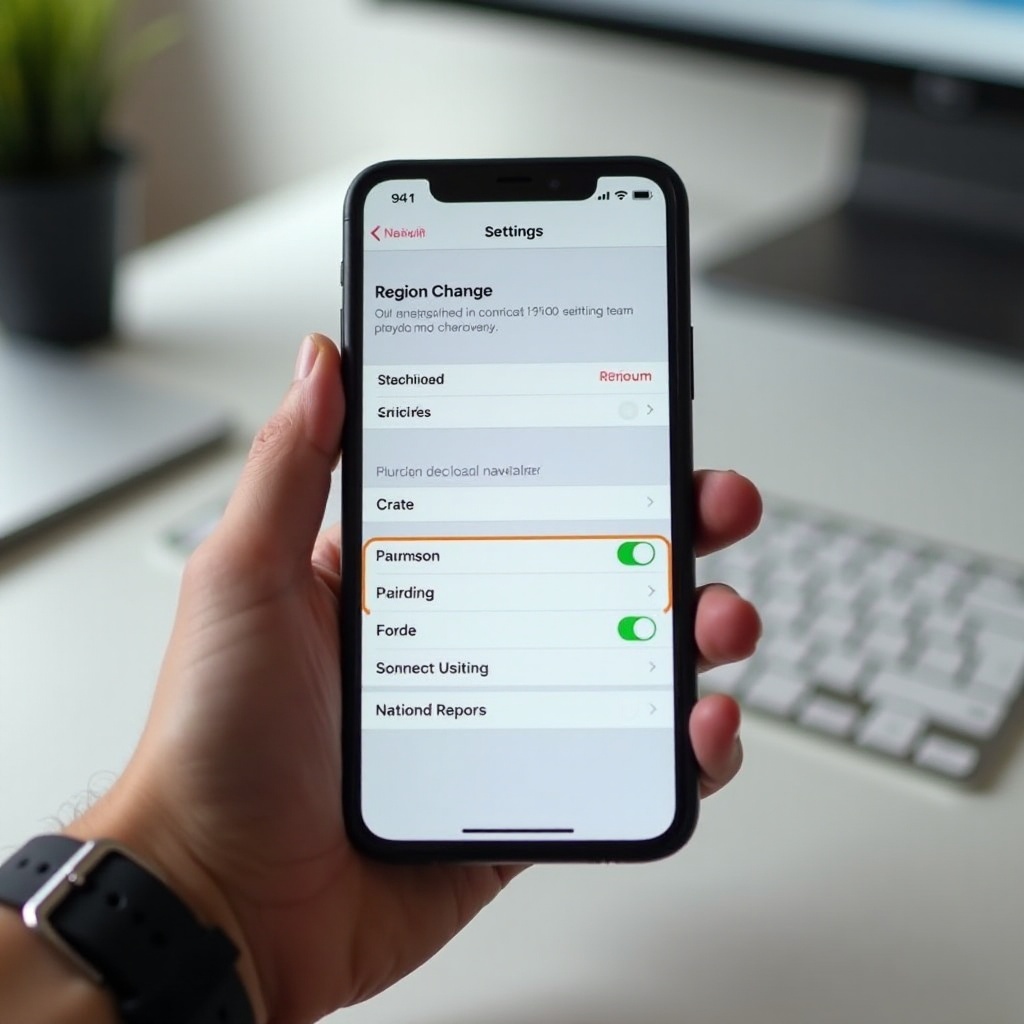
Change Region: Tap on ‘Region,’ then scroll through and choose the country or region you want to switch to. Confirm your selection.
-
Restart Your iPhone: Although not mandatory, restarting your device ensures all settings are correctly applied.
By following these steps, your iPhone will quickly adapt to its new regional settings. Next, we will discuss what you should expect after making this change.
What Happens After Changing Your Region?
Switching your iPhone’s region results in several noticeable changes. Primarily, you will observe changes in the availability of apps on the App Store. Certain apps might no longer be accessible if they are not provided in the new region, while others may become available that were previously inaccessible. Beyond apps, other Apple services, such as Music, TV, and Books, may offer new content options restricted to your previous location.
This change will also affect your phone’s currency display and other regional formats like date and time. Adapting to these differences can be an exciting prospect if you’re fond of exploring new systems.
In case you encounter any issues, let’s go over some common problems and how to troubleshoot them.
Troubleshooting Common Problems
When changing regions, you may experience certain challenges. Here is how to troubleshoot common issues:
-
Error Messages: If you receive any error messages, ensure your Apple ID settings match the chosen region. You might have to sign out and back into Apple services.
-
App Compatibility: Some apps may stop functioning if they aren’t supported in your new region. Check for updates or reinstall the app.
-
Payment Methods: You may need to update your payment method if the one on file isn’t valid for the new region. Revisit your Apple ID payment settings and adjust accordingly.
If these steps don’t resolve your issues, contacting Apple Support can provide further assistance specific to your situation.

Tips for a Smooth Transition
Ensuring a smooth transition when changing your region involves a few practical tips:
-
Backup Your Data: Before making any changes, back up your data to iCloud or your computer to prevent data loss.
-
Review Installed Apps: Identify apps that might not be available in the new region. Make a list and explore alternatives if needed.
These steps can help prevent disruptions and ensure you enjoy the full benefits of your new region without setbacks.
Conclusion
Changing your iPhone’s region can expand your device’s capabilities by giving you access to new apps and content. Understanding the steps involved and potential implications ensures you transition smoothly. By utilizing the guidance and troubleshooting tips provided, you’ll be well-prepared to enjoy the perks of your new regional setting. Now, go ahead and explore the exciting options open to you with a different iPhone region!
Frequently Asked Questions
Can I Change My iPhone Region Without Losing Data?
Yes, changing the region won’t affect your existing data, but it’s wise to back up your data for safety.
Will Changing Region Affect My Apple ID?
Changing the region can alter available services under your Apple ID. Ensure your payment method and billing address align with the new region.
How Often Can I Change My iPhone Region?
There are no specific limits on changing regions, but frequent changes can affect service access. Change as needed for valid reasons.